Best Webcams For Windows 2026
by Remington May
Which webcam is actually worth your money in 2026 — and which ones are just marketing fluff? With remote work, streaming, and video calls now a permanent part of daily life on Windows, picking the wrong webcam means grainy faces, muffled audio, and awkward low-light shots every single meeting. The good news: the Logitech C920x remains the top pick for most people, but depending on your setup, one of the other six options on this list might actually suit you better.
Whether you're jumping on a quick Teams call from your home office, streaming to Twitch, or recording content for YouTube, your webcam matters more than most people realize. A built-in laptop camera is almost always a 720p disappointment. An external webcam — even a budget one — immediately upgrades your video quality and makes a real difference in how others see you on screen. If you're still relying on your laptop's built-in camera, check out our guide on best external webcams for laptops in 2026 for a broader look at your options.

We tested and researched seven of the most popular webcams for Windows in 2026, ranging from affordable plug-and-play options to AI-powered PTZ (pan-tilt-zoom) cameras that track your every move. Below you'll find detailed reviews, a buying guide, and a full buying guide section to help you narrow it down fast. According to Wikipedia's overview of webcam technology, resolution and frame rate remain the two most critical specs — but as you'll see, they're far from the whole story.
Contents
Top Rated Picks of 2026
- #PreviewProductRating
- Bestseller No. 1
 Rating:

- Bestseller No. 2
 Rating:
 - Bestseller No. 3
 Rating:
 - Bestseller No. 4
 Rating:
 - Bestseller No. 5
 Rating:
 - Bestseller No. 6
 Rating:
 - Bestseller No. 7
 Rating:
Detailed Product Reviews
1. Logitech C920x HD Pro PC Webcam — Best Value 1080p
The Logitech C920x is probably the most recommended webcam on the internet — and for good reason. It delivers Full HD 1080p at 30fps with a natural, accurate color reproduction that makes your face look like you're actually in the room. Plug it in via USB, and Windows recognizes it instantly. No drivers needed. No complicated setup.
One thing that separates the C920x from cheaper alternatives is its HD Light Correction technology. It scans the room's lighting conditions and automatically adjusts exposure so you don't look washed out near a window or like a ghost in a dim room. The built-in dual microphone captures your voice cleanly without too much echo. It also supports Nintendo Switch 2's new GameChat mode, which is a nice bonus if you game.
You get a glass lens (not plastic), which makes a noticeable difference in sharpness. The clip mount adjusts to most monitors and laptops with a secure grip. If you want a reliable everyday webcam for Zoom, Teams, or Google Meet without spending a lot, this is the one to get.
Pros:
- True 1080p/30fps with glass lens for sharp, accurate video
- HD Light Correction handles bright windows and dim rooms automatically
- Works plug-and-play on Windows — no driver installation needed
- Compatible with Zoom, Teams, Google Meet, and Nintendo Switch 2 GameChat
- Affordable price point for the quality you get
Cons:
- Capped at 30fps — not ideal if you want smoother motion for streaming
- No privacy shutter included
2. Logitech C922x HD Pro PC Webcam — Best for Streaming
Think of the C922x as the streaming-focused upgrade to the C920x. The biggest difference? It can shoot at 720p/60fps in addition to the standard 1080p/30fps. That higher frame rate makes movement look noticeably smoother on stream — especially if you're someone who gestures a lot or moves around while talking. Gamers and live streamers will feel the difference immediately.
The C922x also includes background replacement support through Logitech's software, so you can swap in a virtual background without needing a green screen. The image quality in well-lit environments is excellent — colors pop and skin tones look natural. Like the C920x, it handles automatic low-light adjustment and works seamlessly across all major video platforms including Zoom, Teams, and Google Meet. It also supports Nintendo Switch 2 GameChat.
If you're primarily video calling for work, the C920x might save you some money. But if you stream, record tutorials, or just want that smoother 60fps look, the C922x is the better choice and typically only costs a little more.
Pros:
- 720p/60fps mode for smoother, more natural-looking motion
- Background replacement without a green screen via Logitech software
- Strong low-light autofocus performance
- Dual stereo microphones with reasonable noise reduction
- Works with all major platforms and Nintendo Switch 2 GameChat
Cons:
- 60fps is only available at 720p, not full 1080p
- Similar design to C920x — not a huge visual upgrade
3. Logitech Brio 4K Webcam — Best 4K with Windows Hello
If you want the sharpest possible image and don't mind spending more, the Logitech Brio 4K is a serious step up. It shoots in Ultra HD 4K at 30fps, which means incredible detail — every background element, facial feature, and texture comes through with professional-grade clarity. Even if your video call is compressed by Teams or Zoom, you're starting from a much higher baseline.
What makes the Brio stand out beyond resolution is its RightLight 3 technology. This goes beyond basic exposure adjustment — it compensates for extreme backlight situations (like sitting with a bright window behind you) and glare, delivering a balanced image that cheaper webcams simply can't match. You also get three adjustable diagonal field of view (FOV) presets: 65°, 78°, and 90°. That means you can frame just your head and shoulders for a professional look, or widen it to show more of your space. A 5x digital zoom (a feature for magnifying your video) is also included.
The killer feature for Windows users specifically is Windows Hello support. That means you can log in to your PC with facial recognition — no password needed. If you're always at your desk, this alone is worth the upgrade. The Brio also has a noise-cancelling microphone that performs well in noisy home environments.
Pros:
- 4K/30fps video with exceptional detail and color accuracy
- RightLight 3 handles backlight and glare situations beautifully
- Windows Hello facial recognition login support
- Three FOV presets (65°, 78°, 90°) for flexible framing
- 5x digital zoom for close-up shots
- Built-in noise-cancelling microphone
Cons:
- Premium price — significantly more expensive than the C920x
- 4K isn't useful if your platform compresses video anyway
4. Microsoft Modern Webcam — Best for Microsoft Teams
Microsoft made this webcam specifically for its own ecosystem — and it shows. The Microsoft Modern Webcam is Certified for Teams and Zoom, which means the hardware and software are optimized to work together without any fiddling. If your whole workflow lives inside Microsoft 365, this is a natural fit.
The standout hardware feature is the integrated privacy shutter. You physically slide it closed to block the lens when you're not on a call — no software toggle, no guessing whether the camera is actually off. There's also a small LED indicator light that tells you when the camera is live. This is a simple but genuinely useful feature for privacy-conscious users.
Video quality is solid for an office-focused cam: 1080p with HDR (high dynamic range — technology that preserves detail in both bright and dark areas of the frame), auto white balance, and exposure compensation. It doesn't match the Brio or Razer Kiyo Pro in raw image quality, but it's reliable, stable, and attaches securely to monitors, laptops, and desktops without wobbling. If you do a lot of video conferencing, also check our review of the best webcams for video conferencing in 2026 for more options at different price points.
Pros:
- Certified for Microsoft Teams and Zoom — optimized integration out of the box
- Physical privacy shutter with usage indicator light
- HDR video with auto white balance and exposure compensation
- Stable mount works well on monitors, laptops, and desktops
- Clean, minimal design that fits professional environments
Cons:
- Image quality is functional but not exceptional compared to Logitech's lineup
- Less flexible outside Microsoft's ecosystem
5. Razer Kiyo Pro Webcam — Best Low-Light Performance
If your room isn't perfectly lit — and most people's rooms aren't — the Razer Kiyo Pro deserves serious consideration. It uses an adaptive light sensor (a camera sensor technology that responds to changing light conditions rather than using a fixed setting) instead of the standard image sensor found in most webcams. The result is dramatically better low-light performance that actually rivals some 4K cameras requiring studio lighting to look comparable.
The Kiyo Pro shoots uncompressed Full HD 1080p at 60fps, which is a big deal for streamers and content creators. "Uncompressed" means the raw image data goes straight to your PC without being degraded by compression artifacts — you get cleaner, sharper video especially during motion. The HDR mode further expands the range of light and shadow the camera can capture in a single frame.
You get three adjustable field of view options — 103°, 90°, and 80° — so you can dial in exactly how much of the room shows up in frame. The wide 103° is great for showing off a gaming setup or large desk. The microphone captures at 16-bit 48kHz audio quality, which is solid for a built-in mic. This is one of the top picks for anyone who streams games or records from a room without great overhead lighting.
Pros:
- Exceptional low-light performance thanks to the adaptive light sensor
- Uncompressed 1080p/60fps — smoother and sharper than compressed alternatives
- Three adjustable FOV settings (103°, 90°, 80°)
- HDR enabled for better dynamic range in mixed lighting
- Works with OBS, XSplit, Twitch, Zoom, and Teams
Cons:
- More expensive than the Logitech options at similar resolutions
- Bulkier design — takes up more desk space
- No background replacement software included
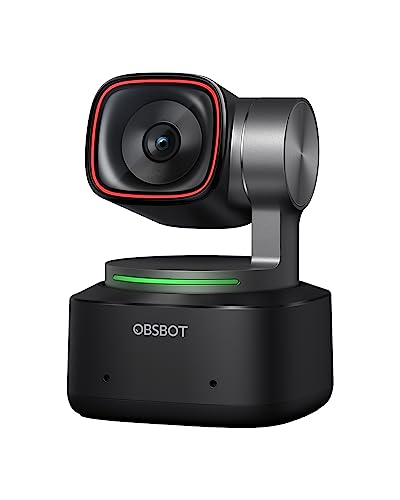
6. OBSBOT Tiny 2 Webcam 4K — Best AI Tracking
The OBSBOT Tiny 2 is in a different category entirely. It's not just a webcam — it's a PTZ (pan-tilt-zoom) camera with AI-powered tracking. That means it physically rotates to follow you as you move around the room. If you present from a whiteboard, walk around during live sessions, or just can't sit still, the Tiny 2 keeps you in frame automatically without any manual adjustment.
The camera packs a 1/1.5-inch CMOS sensor — the largest currently used in any webcam — which translates to outstanding image quality and exceptional light sensitivity. Even in dim rooms, the Tiny 2 produces clean, detailed 4K footage at 30fps or smooth 1080p at 60fps. HDR support adds further depth to the image.
What sets it apart from everything else on this list is the control system. You can control the camera using voice commands (say "Hi TINY, Track Me" and it locks on), gesture controls (wave your hand to trigger zoom or tracking), or through the companion app. There are four AI tracking modes: Upper Body, Close-Up, Hand Tracking, and Zone Tracking — giving you precise control over how the camera frames you. It's genuinely impressive technology, and in 2026, it feels like the direction all serious webcams are heading.
Pros:
- Physical PTZ (pan-tilt-zoom) — the camera moves to follow you
- 1/1.5-inch CMOS sensor for outstanding image quality and low-light performance
- 4K/30fps or 1080p/60fps with HDR
- Voice control and gesture control for hands-free operation
- Four AI tracking modes for flexible framing
Cons:
- Significantly more expensive than standard webcams
- AI tracking can occasionally misfire in crowded or busy backgrounds
- Requires the OBSBOT companion app for full feature access
7. Insta360 Link 2 PTZ 4K Webcam — Best PTZ Auto-Tracking
The Insta360 Link 2 is a direct competitor to the OBSBOT Tiny 2, and in several areas it edges ahead. The standout spec is its 1/2-inch sensor — large by webcam standards — which captures genuinely stunning 4K video with excellent HDR and low-light handling. Colors are vibrant and accurate. Skin tones look natural even under mixed indoor lighting.
Where the Link 2 really shines is autofocus speed. It uses Phase Detection Auto Focus (PDAF) — the same technology found in high-end smartphone cameras — which locks focus nearly instantly. You won't get blurry frames when you lean in close or step back from the camera. For streamers, podcasters, and presenters who move around, this is a huge practical advantage.
The AI noise-cancelling microphone is the best built-in mic on this list. It uses advanced algorithms to filter out keyboard clatter, HVAC hum, and background chatter in real time, leaving your voice clean and clear even in less-than-ideal recording environments. Like the OBSBOT Tiny 2, it supports gesture control and AI subject tracking, with PTZ movement that smoothly follows you around the room. It works natively with Zoom, Teams, Twitch, and OBS.
If you're deciding between the OBSBOT Tiny 2 and the Insta360 Link 2, the Link 2 generally wins on audio and autofocus speed. The OBSBOT wins on sensor size and the variety of AI tracking modes. Both are premium tools aimed at serious creators and professionals.
Pros:
- 1/2-inch sensor delivers crisp 4K with strong HDR and low-light output
- Phase Detection Auto Focus (PDAF) for near-instant focus locking
- Best-in-class AI noise-cancelling microphone on this list
- PTZ tracking with gesture controls and AI subject following
- Works with Zoom, Teams, Twitch, OBS, and more
Cons:
- Premium price — one of the most expensive options here
- Smaller sensor than OBSBOT Tiny 2's 1/1.5-inch unit
- Companion app required for advanced features
Choosing the Right Webcam for Windows: A Buying Guide
Before you pull the trigger on any webcam in 2026, it helps to know what the specs actually mean for your day-to-day use. Here's what to focus on when comparing options.
Resolution and Frame Rate: What Do You Actually Need?
Resolution (measured in pixels — 720p, 1080p, or 4K) determines how sharp your image looks. Frame rate (measured in fps — frames per second) determines how smooth motion looks. Here's a quick breakdown:
- 720p/30fps — Minimum acceptable for video calls. Fine for audio-only-heavy meetings but looks noticeably soft on large screens.
- 1080p/30fps — The sweet spot for most people. Sharp, clear, and widely supported by all platforms.
- 1080p/60fps — Better for streamers and people who move around. Motion is smoother and more natural-looking.
- 4K/30fps — Best available quality. Most useful for recording or when your connection and platform support it. Overkill for basic Zoom calls.
Most video conferencing platforms compress your feed anyway, so beyond 1080p the benefit depends heavily on your specific use case. If you just need calls, save the money. If you record or stream, higher is better.
Low-Light Performance: The Spec That Actually Matters
Here's the honest truth: your lighting situation matters more than your resolution. A 4K webcam in a dim room will look worse than a 1080p camera with good low-light handling. When you're comparing webcams, look for:
- Larger image sensors — The OBSBOT Tiny 2's 1/1.5-inch sensor and Insta360 Link 2's 1/2-inch sensor outperform smaller sensors in low light by a wide margin.
- Adaptive light technology — The Razer Kiyo Pro's adaptive light sensor and Logitech's RightLight 3 both do this well.
- HDR support — Helps balance bright and dark areas of the frame simultaneously.
If your desk is near a bright window or you work in a dim room, prioritize low-light specs over raw resolution numbers.
Microphone Quality: Often Overlooked, Always Noticed
A webcam with bad audio hurts your calls and streams just as much as bad video — sometimes more. Most people on the other end notice poor audio before they notice video quality. Here's what to look for:
- AI noise cancellation — The Insta360 Link 2 leads the pack here, filtering keyboard sounds, fans, and background chatter in real time.
- Stereo vs. mono microphones — Logitech's dual-mic setup creates a more natural-sounding voice pickup.
- Sample rate — The Razer Kiyo Pro's 16-bit 48kHz audio codec is a meaningful spec for streamers and podcasters.
If audio quality is your top concern, also consider pairing any of these webcams with a separate USB microphone. But for most people, the built-in mics on the Insta360 Link 2 and Razer Kiyo Pro are more than good enough.
Special Features: Privacy Shutters, AI Tracking, and Windows Hello
Beyond core specs, a few extra features are worth considering based on your situation:
- Privacy shutter — The Microsoft Modern Webcam has a physical slide cover. Simple but effective for peace of mind.
- Windows Hello support — The Logitech Brio 4K lets you log in with your face. Convenient if you're constantly unlocking your PC.
- PTZ AI tracking — If you move around during calls or presentations, the OBSBOT Tiny 2 or Insta360 Link 2 are worth the premium cost.
- Nintendo Switch 2 GameChat compatibility — The Logitech C920x and C922x both support this if gaming is part of your use case.
Not sure which one is right for your specific setup? Our guide on how to connect a webcam to your computer walks you through everything from choosing the right USB type to adjusting settings in Windows.
FAQs
What is the best webcam for Windows in 2026?
For most people, the Logitech C920x is the best all-around choice. It delivers sharp 1080p/30fps video, reliable plug-and-play compatibility with Windows, and automatic light correction — all at an affordable price. If you need 4K or AI tracking, step up to the Logitech Brio 4K, OBSBOT Tiny 2, or Insta360 Link 2 depending on your budget and use case.
Do I need a 4K webcam for video calls?
For standard video calls on Zoom, Teams, or Google Meet, 4K is generally overkill. Most platforms compress your video stream, so the quality difference between 1080p and 4K is minimal in a live call. Where 4K shines is in recorded content, streaming to high-resolution displays, or situations where you crop and zoom into the footage in post-production. If calls are your primary use, a great 1080p camera is the smarter spend.
What webcam works best with Microsoft Teams?
The Microsoft Modern Webcam is officially Certified for Microsoft Teams, meaning it's optimized and tested to work seamlessly within the Teams ecosystem. The Logitech Brio 4K and C920x are also listed as Teams-compatible and work well. If your work revolves entirely around Teams meetings, the Microsoft Modern Webcam's native integration and privacy shutter make it the most practical choice.
Can I use these webcams with Nintendo Switch 2?
Yes — the Logitech C920x and C922x both specifically list compatibility with Nintendo Switch 2's new GameChat mode as of 2026. The other webcams on this list may also work with Switch 2 via USB, but Logitech has officially confirmed GameChat support for these two models. Check the product page for the latest compatibility details before purchasing.
What's the difference between 30fps and 60fps for webcams?
Frame rate (fps — frames per second) determines how smooth motion appears on video. At 30fps, fast head movements or gesturing can look slightly choppy. At 60fps, motion looks noticeably smoother and more natural — similar to how you see the world. For video calls and basic recording, 30fps is perfectly fine. For streaming, gaming content, or any situation with a lot of on-camera movement, 60fps makes a real visible difference. The Razer Kiyo Pro and Logitech C922x both offer 1080p/60fps modes.
How do I set up a webcam on Windows 10 or 11?
Most modern webcams are plug-and-play on Windows — just connect via USB and Windows will detect and install the camera automatically within seconds. To verify it's working, open the Camera app from the Start menu. You can also check settings under Settings → Bluetooth & devices → Cameras. For advanced settings like FOV, zoom, or AI tracking, you'll need the manufacturer's companion app (Logitech Capture, OBSBOT Center, or Insta360 Link Controller). If you run into any issues, our guide on how to use a webcam on your laptop has step-by-step instructions for common troubleshooting scenarios.
Buy on Walmart
- Logitech C920x HD Pro PC Webcam, Full HD 1080p/30fps Video, — Walmart Link
- Logitech C922x HD Pro PC Webcam, Full HD 1080p/30fps or 720p — Walmart Link
- Logitech Brio 4K Webcam, Video Calling, Noise-Cancelling mic — Walmart Link
- Microsoft Modern Webcam with Built-in Noise Cancelling Micro — Walmart Link
- Razer Kiyo Pro Webcam for Streaming, Gaming, Video Calls: Fu — Walmart Link
- OBSBOT Tiny 2 Webcam 4K Voice Control PTZ, AI Tracking Multi — Walmart Link
- Insta360 Link 2 - PTZ 4K Webcam for PC/Mac, 1/2" Sensor, AI — Walmart Link
Buy on eBay
- Logitech C920x HD Pro PC Webcam, Full HD 1080p/30fps Video, — eBay Link
- Logitech C922x HD Pro PC Webcam, Full HD 1080p/30fps or 720p — eBay Link
- Logitech Brio 4K Webcam, Video Calling, Noise-Cancelling mic — eBay Link
- Microsoft Modern Webcam with Built-in Noise Cancelling Micro — eBay Link
- Razer Kiyo Pro Webcam for Streaming, Gaming, Video Calls: Fu — eBay Link
- OBSBOT Tiny 2 Webcam 4K Voice Control PTZ, AI Tracking Multi — eBay Link
- Insta360 Link 2 - PTZ 4K Webcam for PC/Mac, 1/2" Sensor, AI — eBay Link
Next Steps
- Check the current price on Amazon for your top choice — webcam prices shift frequently, and deals appear regularly on the Logitech models especially.
- Test your current webcam first — open the Windows Camera app and record a short clip in your actual workspace lighting before deciding if an upgrade is necessary.
- Read the buying guide section above and match your use case (video calls, streaming, recording, or AI tracking) to the right spec tier before committing to a price range.
- Browse the full buying guide at /buying-guide/ for side-by-side comparisons of webcams across more categories and budgets.
- Set up your new webcam correctly — once it arrives, follow our step-by-step guide on how to connect a webcam to your computer to get it configured properly in Windows and your preferred video app.



About Remington May
Remington May is a technology writer and digital product reviewer with a focus on consumer electronics, software, and the everyday tech that shapes how people work and live. She has spent years evaluating smartphones, laptops, smart home devices, and digital tools — approaching each product from the perspective of a practical user rather than a spec-sheet enthusiast. At Pinwords, she covers tech buying guides, product reviews, smartphone and laptop comparisons, and practical how-to guides for getting more out of your devices.
Check for FREE Gifts. Or latest free books from our best messages.
Remove Ad block to reveal all the secrets. Once done, hit a button below