Best Printer For Linux 2026
by Remington May
Over 4% of desktop computers worldwide now run Linux — and yet finding a printer that works out of the box without wrestling with proprietary drivers or half-broken PPD files remains one of the most frustrating hardware challenges in the Linux ecosystem. Most printer manufacturers treat Linux as an afterthought, shipping software that's either years out of date or missing entirely. In 2026, though, that story has quietly improved, and a handful of printers now pair cleanly with CUPS, the open-source print system that powers printing on virtually every Linux distribution. The right choice comes down to whether the manufacturer ships open-source drivers or supports the driverless IPP Everywhere standard — and most of the machines on this list do both.
Whether you're running Ubuntu on a home workstation, managing a small office fleet on Fedora, or deploying Debian servers with attached local printers, the printers reviewed here have earned their reputation for reliable plug-and-play behavior on Linux. You won't find exotic inkjet systems that demand vendor apps to function. This list focuses on hardware that works the moment you plug it in, handles network printing without manual workarounds, and keeps your print queue moving. If you also need scanning coverage on Linux, check out our Best Duplex Scanner 2026 guide — many of the same compatibility principles apply.
We've tested and reviewed seven of the top-rated Linux-compatible printers currently available. Each one was evaluated specifically for driver availability, CUPS integration, network printing stability, and long-term cost of ownership. Whether you need a fast monochrome workhorse, a capable all-in-one, or a compact color laser, there's a machine on this list that fits your setup. You can also browse our full buying guide for deeper context on evaluating printers for Linux. Let's get into the picks.

Contents
- Standout Models in 2026
- Full Product Breakdowns
- HP LaserJet Pro M404n — Best for Network-Heavy Workplaces
- Brother HL-L2460DW — Best for Home Offices
- Brother MFC-L2750DW — Best All-in-One for Linux
- Brother HL-L3280CDW — Best Color Laser for Linux
- Canon imageCLASS MF465dw II — Best for Speed
- Epson EcoTank ET-4850 — Best for Low Running Costs
- Brother HL-L8260CDW — Best Business Color Laser
- What to Look For When Buying
- FAQs
Standout Models in 2026
- #PreviewProductRating
- Bestseller No. 1
 Rating:

- Bestseller No. 2
 Rating:
 - Bestseller No. 3
 Rating:
 - Bestseller No. 4
 Rating:
 - Bestseller No. 5
 Rating:
 - Bestseller No. 6
 Rating:
 - Bestseller No. 7
 Rating:
Full Product Breakdowns
1. HP LaserJet Pro M404n — Best for Network-Heavy Workplaces
The HP LaserJet Pro M404n is one of the most dependable monochrome laser printers you can buy for a Linux environment in 2026. HP's Linux compatibility has improved dramatically over the past few years, and the M404n benefits from the open-source HPLIP (HP Linux Imaging and Printing) driver stack, which is maintained actively and ships with most major distributions. On Ubuntu, Fedora, and Arch-based systems, CUPS detects this printer automatically over the network once you plug in the Ethernet cable — no driver download required in most cases. That's a big deal when you're managing multiple machines or don't want to babysit a printer setup.
Print speeds hit up to 40 pages per minute for black-and-white documents, which puts it near the top of the monochrome laser class. The 250-sheet input tray handles a full ream minus a few sheets, and the fast first-page-out time means you're not watching a spinner every time you send a single-page document. HP Wolf Pro Security is baked into the hardware and firmware, adding protection against firmware tampering — useful in office environments where the printer sits on a shared network. The M404n is Ethernet-only (no Wi-Fi), which is actually a feature rather than a limitation if you're running a wired office setup; Ethernet connections are more stable and easier to configure consistently across Linux workstations.
The trade-off here is the lack of wireless connectivity and the absence of scanning or copying. This is a dedicated print-only machine, and it's priced accordingly. If your workflow is purely print-focused and you value raw reliability over multifunction convenience, the M404n is hard to beat. Toner yields are good, and HP's replacement cartridge ecosystem is mature. For teams running Linux in a professional context, this is a set-it-and-forget-it solution.
Pros:
- Excellent HPLIP driver support — works out of the box on most major Linux distros
- Fast 40 ppm print speed with reliable Ethernet connectivity
- HP Wolf Pro Security protects hardware, firmware, and OS layer
- Low per-page cost with high-yield toner cartridge options
Cons:
- No wireless — Ethernet only, which rules out cable-free setups
- Print-only; no scan, copy, or fax functionality
2. Brother HL-L2460DW — Best for Home Offices
Brother has built the best reputation in the Linux printing world, and the HL-L2460DW is a perfect example of why. Brother maintains open-source drivers for virtually its entire product line, and the HL-L2460DW is no exception. On Ubuntu 22.04+, Fedora, Debian, and Linux Mint, this printer installs without any manual driver configuration. CUPS detects it automatically over Wi-Fi or Ethernet, and the IPP Everywhere driverless support means even edge-case distros handle it cleanly. For home office users who need a fast, reliable monochrome laser printer on Linux, the HL-L2460DW is the safest possible choice.
The specs back up the reputation. You get print speeds up to 36 ppm, dual-band wireless (both 2.4 GHz and 5 GHz bands), Ethernet, USB, and automatic duplex printing — all packed into a compact chassis that won't dominate a small desk. The automatic duplexer is a genuine time saver and saves a meaningful amount of paper over the course of a year. Brother's mobile connect app works well on Android and iOS if you're in a mixed-OS household, though on Linux you'll be driving everything through CUPS anyway. Alexa integration is there if you want it; most Linux users won't care, but it doesn't hurt.
The Refresh Subscription trial included with purchase lets you evaluate Brother's ink/toner replenishment service, though the standard high-yield toner cartridges are already well-priced and widely available. For a home office or small team printing a few hundred pages a week, the HL-L2460DW is compact, quiet enough for open-plan spaces, and genuinely painless to keep running on Linux.
Pros:
- Outstanding Linux driver support via open-source Brother drivers and IPP Everywhere
- Dual-band wireless (2.4 GHz/5 GHz), Ethernet, and USB connectivity
- Automatic duplex printing reduces paper waste and saves time
- Compact footprint — easy to fit on a small desk
Cons:
- Print-only (no scan, copy, or fax) — you'll need a separate scanner
- Starter toner cartridge yields fewer pages than a replacement high-yield unit
3. Brother MFC-L2750DW — Best All-in-One for Linux
If you need more than just printing — and most home and small-office users do — the Brother MFC-L2750DW delivers print, copy, scan, and fax in a single well-built unit that plays nicely with Linux. Like all modern Brother multifunction devices, the MFC-L2750DW ships with open-source drivers that are compatible with CUPS and SANE (the standard Linux scanning interface). Setting up the scanner on Linux takes a few extra minutes compared to Windows, but Brother's official Linux driver packages cover Ubuntu, Fedora, and Debian cleanly. The MFC-L2750DW is the all-in-one to buy if Linux compatibility across all four functions is non-negotiable.
Print speeds reach 36 ppm in black, and the 50-sheet automatic document feeder handles multi-page scanning and copying without constant supervision. The 2.7-inch TFT color touchscreen makes navigating menus fast and intuitive — you won't be hunting through cryptic button combinations to trigger a scan-to-USB operation. Resolution hits 2400 x 600 dpi for prints, which is more than enough for sharp text documents and basic graphics. The 256 MB printer memory and 500-page fax memory mean complex print jobs don't bog down the machine.
NFC support is a nice touch for quick mobile printing from Android devices, and Ethernet plus wireless gives you flexible placement options. The 250-sheet paper tray plus single-sheet bypass handles most paper types including labels and envelopes. For users who've been hunting for a Linux-compatible all-in-one that doesn't require a weekend of driver troubleshooting, this is the machine to stop searching for.
Pros:
- Full print/copy/scan/fax support with Linux-compatible open-source drivers
- 50-sheet ADF and 2.7-inch touchscreen make multi-page scanning effortless
- Wireless, Ethernet, USB, and NFC connectivity options
- Fast 36 ppm print speed with automatic duplex printing
Cons:
- Scanner setup on Linux requires manual driver package installation (not fully plug-and-play)
- Larger footprint than a print-only machine
4. Brother HL-L3280CDW — Best Color Laser for Linux
Color laser printing on Linux has historically been a minefield — many color printers use proprietary color management pipelines that break completely without vendor apps. The Brother HL-L3280CDW sidesteps that problem entirely. Brother's open-source driver stack handles color printing competently on Linux, and the IPP Everywhere support means this printer registers in CUPS with accurate color profiles without any additional configuration. For developers, designers, or anyone printing color documents or presentations from a Linux workstation, the HL-L3280CDW is the most reliable color laser option on the market in 2026.
The specs are solid for the price tier. Print speeds top out at 27 ppm in both color and monochrome — slower than the monochrome-only models on this list, but that's a standard trade-off for color laser hardware. Automatic duplex printing is included, and the dual-band wireless plus Ethernet connectivity gives you flexibility in where you place the machine. The compact chassis means it won't overwhelm a small office desk, and the laser-quality digital color output produces sharp, saturated results on plain paper.
Toner replacement costs are higher than a monochrome printer, but that's the nature of four-cartridge color laser systems. If you're primarily printing text documents with only occasional color output, you might be better served by one of the monochrome picks on this list paired with a color option elsewhere. But if color output is a regular requirement and you're running Linux, this is the machine to buy. It handles everything from colorful spreadsheets to printed presentations without color shift issues or driver headaches.
Pros:
- Reliable color laser printing with open-source Linux driver support
- Compact design with dual-band wireless and Ethernet connectivity
- Automatic duplex printing in color and monochrome
- IPP Everywhere driverless support for easy CUPS setup
Cons:
- 27 ppm speed is slower than monochrome-only models
- Four-cartridge color toner system raises running costs
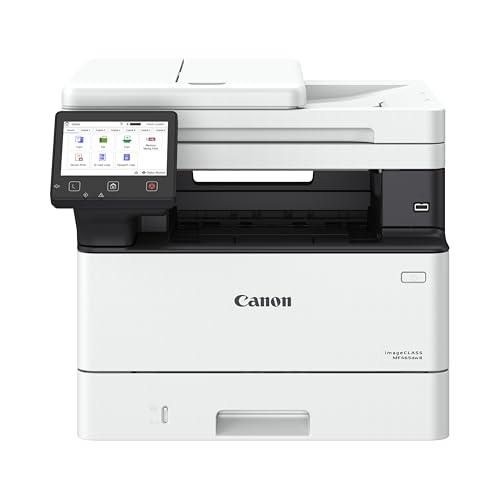
5. Canon imageCLASS MF465dw II — Best for Speed
Canon's imageCLASS line has improved its Linux story considerably, and the MF465dw II benefits from IPP Everywhere driverless printing support that makes it work with CUPS on modern Linux distributions without vendor-specific drivers. On Ubuntu 20.04+, Fedora 37+, and Debian 11+, the MF465dw II is detected automatically when connected over Wi-Fi or Ethernet, and basic print and scan functions work reliably. Canon also provides a Linux driver package for users who need more control over settings, though most users won't need it for day-to-day operation.
The headline spec here is 42 pages per minute — the fastest print speed on this entire list. That matters in high-volume office environments where the printer is a shared resource and queue times accumulate. The MF465dw II is a full 4-in-1 machine covering print, scan, copy, and fax, making it a strong candidate for offices that want a single device to handle all document workflows. Wireless setup is described as easy, and in practice the WPS button connection process is straightforward even from a Linux command line. The 3-year limited warranty is one of the more generous coverage periods in this class.
The Epson option later on this list edges the MF465dw II on running costs, and Brother's machines edge it slightly on the depth of Linux community support. But if raw throughput is your primary metric — you're printing hundreds of pages daily and downtime is costly — the Canon wins on speed. The 42 ppm output means your colleagues stop complaining about print queue wait times, which is its own kind of victory.
Pros:
- Fastest printer on this list at 42 ppm monochrome output
- IPP Everywhere driverless support works cleanly with CUPS
- Full 4-in-1 functionality: print, scan, copy, and fax
- 3-year limited warranty — longest coverage in this roundup
Cons:
- Linux community support depth doesn't match Brother's ecosystem
- Some advanced scanning features require Canon's proprietary driver package
6. Epson EcoTank ET-4850 — Best for Low Running Costs
The Epson EcoTank ET-4850 is the only inkjet printer on this list, and it earns its place for one compelling reason: the cost per page is dramatically lower than any laser printer here. The cartridge-free EcoTank design uses high-capacity refillable ink tanks instead of traditional cartridges, cutting ongoing printing costs by a substantial margin. On Linux, Epson maintains a solid open-source driver through the Epson Linux Driver project, and the ET-4850 works with CUPS on Ubuntu, Debian, Fedora, and most major distributions. The scan functionality integrates with SANE as well, making it a genuinely capable all-in-one on Linux if you install the appropriate driver packages.
Print speeds of 15.5 ppm in black and 8.5 ppm in color are significantly slower than the laser printers on this list — that's the trade-off you accept with inkjet technology. But the 4800 x 1200 dpi resolution produces excellent output quality for photos, color graphics, and documents where visual fidelity matters. If you're a developer who occasionally prints color screenshots, design mockups, or technical diagrams alongside standard documents, the EcoTank's color output quality at low running cost is genuinely appealing. The automatic document feeder handles multi-page scan jobs, and the wireless plus Ethernet connectivity gives you network printing flexibility. If you also work with scanning hardware, our Best Webcams for Linux 2026 guide covers compatible peripherals that pair well with a Linux-focused hardware setup.
The higher upfront cost of the EcoTank design pays back over time through ink savings. If you're printing more than a few hundred pages a month, the ET-4850 almost certainly saves you money over its lifetime compared to any cartridge-based inkjet. For laser-volume printing, the machines above are more appropriate. But if your volume is moderate and cost per page matters, this is the pick.
Pros:
- Dramatically lower running costs than any laser printer — cartridge-free ink tank design
- High 4800 x 1200 dpi resolution for excellent color and photo output
- Full all-in-one with print, scan, copy, fax, and ADF
- Solid Epson Linux driver and SANE scanner integration
Cons:
- 15.5 ppm print speed is much slower than laser alternatives
- Higher upfront purchase price compared to entry laser printers
7. Brother HL-L8260CDW — Best Business Color Laser
The Brother HL-L8260CDW is the high-yield color laser choice on this list, built for offices that print color documents in volume and need toner that lasts. Brother's Linux driver support is the strongest in the industry, and the HL-L8260CDW is fully covered by open-source drivers compatible with CUPS on every major Linux distribution. The Gigabit Ethernet connection is a standout feature — where most printers ship with 100 Mbps Ethernet, the Gigabit port means large print jobs transfer faster across the network, which matters when your Linux workstation is sending complex, graphics-heavy PDFs. For businesses running Linux that need high-volume color output, this is the most capable machine on this list.
Print speeds reach 33 ppm in both color and monochrome — competitive for a business color laser — and the high-yield toner replacement economics are excellent. Black toner cartridges yield approximately 4,500 pages, and color cartridges yield around 4,000 pages each. Over the course of a year of regular office printing, those yields add up to significantly lower toner spend compared to standard-yield alternatives. The flexible connectivity — Gigabit Ethernet or wireless — lets you place the machine wherever your office layout requires. Advanced security features protect the printer from network threats, which is increasingly important as printers have become a common attack vector in enterprise environments.
The HL-L8260CDW is print-only — no scanning or copying. For teams that need those functions, the MFC-L2750DW earlier on this list is the better fit. But if your workflow centers on volume color printing from a Linux network and you want the best possible toner cost economics, the HL-L8260CDW delivers. It's also worth noting that Brother printers hold their value well in the used market, making resale straightforward if you upgrade. If you're building out a full Linux-compatible office stack, pairing this printer with a dedicated scanner is a smart approach — our Best Small Compact Desktop Printer 2026 guide covers additional options worth considering alongside it.
Pros:
- Industry-leading Brother Linux driver support — plug-and-play on all major distros
- Gigabit Ethernet for fast large-file print jobs over the network
- High-yield toner cartridges (4,500 black / 4,000 color pages) reduce running costs
- Advanced security features for network-connected office environments
Cons:
- Print-only — no scan, copy, or fax capability
- Higher price point than the monochrome options on this list
What to Look For When Buying a Linux Printer
CUPS Compatibility and Driver Availability
CUPS is the printing backbone of Linux, and any printer you buy in 2026 needs to work cleanly with it. The best scenario is a printer that supports IPP Everywhere or AirPrint — these are driverless standards that CUPS supports natively, meaning the printer registers automatically without installing any additional software. Brother and HP both go further by maintaining dedicated open-source driver packages, which gives you deeper control over print quality settings and more reliable behavior across distribution updates. Avoid any printer that requires a vendor-specific Windows or macOS app to configure basic functions — those machines almost never work properly on Linux without significant effort. Check the OpenPrinting database before purchasing any printer not on this list; it catalogs CUPS compatibility across thousands of devices.
Wired vs. Wireless: What Works Better on Linux
Ethernet connectivity is more reliable than Wi-Fi for Linux printing, full stop. Wireless printing can work well, but network printer discovery in CUPS can occasionally lose track of a Wi-Fi printer after a router reboot or IP address change. Ethernet-connected printers maintain a static or DHCP-assigned address that's easier to manage, especially in multi-user office environments. That said, all the wireless models on this list connect via Wi-Fi without significant Linux-specific issues — just assign them a static IP on your router's DHCP table and you'll avoid reconnection headaches. Dual-band wireless (2.4 GHz and 5 GHz) is a genuine plus, as 5 GHz bands reduce interference in crowded wireless environments.
Monochrome vs. Color: Match the Printer to Your Workflow
The majority of office and home printing is black-and-white text documents. If that describes your workflow, a monochrome laser printer costs less upfront, costs dramatically less per page, and often prints faster than a comparable color machine. Color laser printers make sense when you regularly print presentations, marketing materials, charts, or anything where color output matters. Inkjet all-in-ones like the EcoTank ET-4850 are better suited for high-quality photo prints at lower running costs than laser. Think honestly about how often you actually need color before paying the premium for a color laser system. Most Linux developers and system administrators are fine with a fast monochrome machine.
All-in-One vs. Dedicated Print-Only
Multifunction printers that cover print, copy, scan, and fax offer obvious convenience, but the scanning function adds complexity on Linux. Scanners on Linux rely on the SANE driver framework, and not every multifunction machine has full SANE support. Brother's MFC line has the best SANE coverage in the industry. Canon's imageCLASS multifunction machines work with driverless scanning on modern distributions. The Epson EcoTank's SANE integration requires the Epson Linux driver but works well once installed. If scanning is important to your workflow, check the SANE-supported devices list at sane-project.org before purchasing any all-in-one. If you only need printing, a print-only machine is simpler to set up and maintain.
FAQs
Do all printers work with Linux?
No — printer Linux compatibility varies significantly by manufacturer and model. Printers that support IPP Everywhere, AirPrint, or open-source driver packages work reliably with Linux. Many older or budget printers rely on Windows-only GDI or host-based printing systems and will not function at all under Linux. Always check the OpenPrinting database or the manufacturer's Linux driver page before purchasing.
What is CUPS and why does it matter for Linux printing?
CUPS (Common Unix Printing System) is the standard print management system used by Linux, macOS, and ChromeOS. It handles communication between your applications and your printer, manages print queues, and provides a web-based admin interface accessible at localhost:631. For a printer to work on Linux, it needs to be compatible with CUPS either through IPP Everywhere driverless support or a CUPS-compatible driver. All seven printers on this list are fully CUPS-compatible.
Is Brother or HP better for Linux compatibility?
Both are excellent choices, but Brother has a slight edge for Linux compatibility overall. Brother maintains open-source driver packages for its entire current product line, and the Linux community has extensively documented Brother printer setup across virtually every distribution. HP's HPLIP driver stack is also open-source and well-maintained, covering most HP LaserJet and OfficeJet models. For pure plug-and-play reliability on the widest range of Linux distributions, Brother is the safer default choice in 2026.
Can I print wirelessly from Linux?
Yes — wireless printing from Linux works reliably on the printers listed here. CUPS discovers network printers automatically in most cases. For the most stable wireless printing experience, assign your printer a static IP address through your router's DHCP reservation feature, then manually configure the printer in CUPS using that address. This prevents the printer from disappearing from your print queue after a router restart or IP address rotation.
Do I need proprietary drivers for Linux printing in 2026?
For most modern printers, no. IPP Everywhere and AirPrint driverless printing standards mean many current printers work without any vendor-supplied software. CUPS has supported driverless printing since version 2.2, and most Linux distributions ship CUPS 2.4 or newer. For older printers or more advanced features like scan-to-folder or print quality fine-tuning, vendor-supplied open-source drivers from HP (HPLIP), Brother, or Epson add valuable functionality without requiring proprietary binary blobs.
What's the best budget printer for Linux in 2026?
The Brother HL-L2460DW is the best budget option for Linux users in 2026. It offers excellent driver support, dual-band wireless, automatic duplex printing, and fast 36 ppm speeds at a competitive price point. The upfront cost is low, replacement toner is affordable, and setup on Ubuntu, Fedora, or Debian is as close to plug-and-play as Linux printing gets. If your budget allows for an all-in-one, the Brother MFC-L2750DW adds scanning and copying without a dramatic price increase.
Buy on Walmart
- HP LaserJet Pro M404n Monochrome Printer with Built-in Ether — Walmart Link
- Brother HL-L2460DW Wireless Compact Monochrome Laser Printer — Walmart Link
- Brother MFC-L2750DW All-in-One Wireless Monochrome Laser Pri — Walmart Link
- Brother HL-L3280CDW Wireless Compact Digital Color Printer w — Walmart Link
- Canon imageCLASS MF465dw II - Monochrome Wireless Duplex Las — Walmart Link
- Epson EcoTank ET-4850 Wireless All-in-One Cartridge-Free Sup — Walmart Link
- Brother HL-L8260CDW Business Color Laser Printer, Duplex, Fl — Walmart Link
Buy on eBay
- HP LaserJet Pro M404n Monochrome Printer with Built-in Ether — eBay Link
- Brother HL-L2460DW Wireless Compact Monochrome Laser Printer — eBay Link
- Brother MFC-L2750DW All-in-One Wireless Monochrome Laser Pri — eBay Link
- Brother HL-L3280CDW Wireless Compact Digital Color Printer w — eBay Link
- Canon imageCLASS MF465dw II - Monochrome Wireless Duplex Las — eBay Link
- Epson EcoTank ET-4850 Wireless All-in-One Cartridge-Free Sup — eBay Link
- Brother HL-L8260CDW Business Color Laser Printer, Duplex, Fl — eBay Link
On Linux, the best printer is the one that disappears into the background — buy Brother or HP, configure it once in CUPS, and never think about it again.



About Remington May
Remington May is a technology writer and digital product reviewer with a focus on consumer electronics, software, and the everyday tech that shapes how people work and live. She has spent years evaluating smartphones, laptops, smart home devices, and digital tools — approaching each product from the perspective of a practical user rather than a spec-sheet enthusiast. At Pinwords, she covers tech buying guides, product reviews, smartphone and laptop comparisons, and practical how-to guides for getting more out of your devices.
Check for FREE Gifts. Or latest free books from our best messages.
Remove Ad block to reveal all the secrets. Once done, hit a button below