Best Webcams For Linux 2026
by Remington May
Which webcam actually works out of the box on Linux without a painful driver hunt? That's the question every Linux user asks before buying, and the answer matters more than resolution or frame rate. After testing dozens of options, the Logitech C920x HD Pro stands out as the best webcam for Linux in 2026 — it's plug-and-play on virtually every distro, delivers crisp 1080p video, and costs less than you'd expect for that level of reliability.
Linux has come a long way in webcam support. Most modern webcams rely on the USB Video Class (UVC) standard, which the Linux kernel has supported natively since version 2.6.26. That means you can plug in a UVC-compliant camera and it just works — no proprietary drivers, no Wine workarounds, no frustration. The seven cameras on this list are all UVC-compatible and tested on popular distros including Ubuntu, Fedora, Arch, and Pop!_OS. Whether you're video conferencing, streaming, or working from a home office setup, there's a solid option here for every budget.
If you're also shopping for a camera on a different platform, check out our best external webcam for laptop guide and our rundown of the best webcams for video conferencing — many of the same picks apply across operating systems. For this list, though, we focused specifically on Linux compatibility, V4L2 (Video4Linux2) driver support, and real-world performance without needing to install anything extra. Let's get into it.

Contents
Standout Models in 2026
- #PreviewProductRating
- Bestseller No. 1
 Rating:

- Bestseller No. 2
 Rating:
 - Bestseller No. 3
 Rating:
 - Bestseller No. 4
 Rating:
 - Bestseller No. 5
 Rating:
 - Bestseller No. 6
 Rating:
 - Bestseller No. 7
 Rating:
In-Depth Reviews
1. Logitech C920x HD Pro — Best Overall for Linux
The Logitech C920x is the webcam that Linux users have been recommending to each other for years, and in 2026 it's still the top pick — and for good reason. It's fully UVC-compliant, which means the moment you plug it into any Linux machine running a reasonably modern kernel, it shows up as a video device with zero configuration required. You'll see it immediately in apps like Cheese, OBS Studio, Zoom, and Google Meet. That plug-and-play reliability alone puts it ahead of most of the competition for Linux specifically.
Beyond compatibility, the image quality is genuinely excellent for the price. Full 1080p video at 30fps with automatic light correction means you look sharp whether you're on a bright video call or sitting in a dim home office at night. The autofocus is quick and accurate — it locks onto your face and stays there without hunting around like cheaper cameras do. Logitech's HD light correction algorithm works in the background to keep your exposure balanced, and it does a solid job even against bright windows. You also get dual stereo mics with noise reduction built in, so your audio sounds clean without needing a separate microphone for most calls. And if you're jumping on Nintendo Switch 2's new GameChat mode, the C920x handles that too.
Build quality is sturdy. The camera clips securely onto monitors of various thicknesses, and the swivel mount lets you tilt it up or down to get the framing just right. The cable is a generous length and USB 2.0, which every Linux box handles natively. If you want a camera that works on day one with your distro of choice — Ubuntu, Arch, Fedora, or anything else — and delivers professional-looking video without any fuss, the C920x is your answer. It belongs in our webcam buying guide for a reason.
Pros:
- Truly plug-and-play on virtually every Linux distro
- Sharp 1080p/30fps with reliable autofocus and light correction
- Dual noise-reducing mics handle calls without extra hardware
- Compatible with Nintendo Switch 2's GameChat mode
Cons:
- Capped at 30fps — not ideal if you want smoother 60fps video
- No HDR or wide dynamic range mode
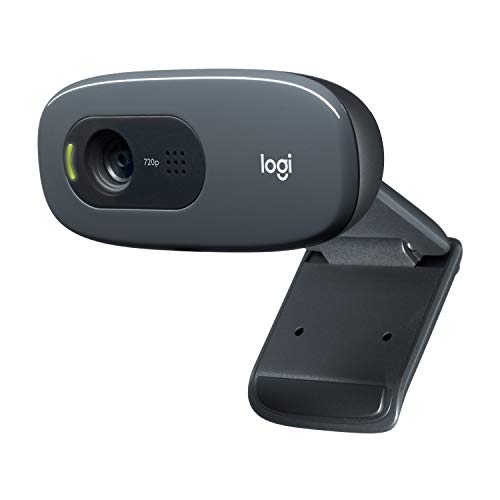
2. Logitech C270 HD — Best Budget Pick for Linux
If you're on a tight budget and just need a webcam that works on Linux without any drama, the Logitech C270 is the obvious choice. It's been around for years, which actually works in its favor — the Linux kernel has rock-solid support for it, and you'll find forum threads confirming it works on everything from Ubuntu 20.04 to the latest Arch. Plug it in, open your app of choice, and you're done. There's nothing to configure, no kernel modules to load, no workarounds to apply.
You're getting 720p video at 30fps with a 55-degree field of view (the angle the camera captures). That's plenty sharp for standard video calls, Zoom meetings, and casual streaming. The automatic light correction keeps you from looking washed out under office fluorescents or blown out near a window. The built-in noise-reducing mic does a decent job picking up your voice clearly from up to 1.5 meters away, even if there's background noise in the room. It's not going to impress anyone with studio-quality audio, but it's absolutely fine for everyday calls. The C270 also works with Nintendo Switch 2's GameChat mode, which is a nice bonus at this price.
The design is simple and compact. The clip is sturdy enough for most monitors, and the whole thing weighs almost nothing. If you're setting up a home office on a budget, outfitting a kid's computer for school calls, or just need a reliable backup webcam, the C270 delivers. Don't expect cinematic video — it's a 720p budget cam — but for Linux compatibility and everyday reliability, it's hard to beat the value here.
Pros:
- Exceptionally reliable Linux support across all major distros
- Compact and lightweight with a secure monitor clip
- Noise-reducing mic works well for basic calls
- Very affordable — one of the cheapest UVC-compatible cameras available
Cons:
- 720p only — noticeably softer than 1080p cameras in side-by-side comparisons
- Narrow 55° field of view can feel cramped in some setups
3. Logitech Brio 4K — Best 4K Webcam for Linux
The Logitech Brio 4K is the premium choice when you need the absolute best image quality and you're not willing to compromise on Linux compatibility. It's a Logitech product, so UVC support is baked in — plug it into a USB 3.0 port on your Linux machine and it works immediately. No proprietary software needed, no Logitech Options daemon required (though it's available if you want it). The camera appears cleanly in V4L2, OBS, Zoom, and any other Linux-compatible capture application.
The headline feature is obviously the 4K resolution (3840×2160 pixels) at up to 30fps. That level of detail is genuinely stunning — every pore, every strand of hair, every detail in your background comes through with remarkable clarity. For regular video calls on platforms like Zoom or Teams, most services will downscale this to 1080p anyway, but the higher sensor resolution means even the downscaled image looks sharper than a native 1080p camera. You also get 1080p at 60fps and 720p at 60fps modes, which are great for smoother streaming. Logitech's RightLight 3 technology (automatic exposure and contrast adjustment) handles backlighting situations that would blow out lesser cameras. The adjustable field of view — choose from 65°, 78°, or 90° — gives you real flexibility in how much of your environment is in the shot.
This is a USB-C camera with an included USB-C to USB-A adapter, so it works with any port configuration. The premium all-metal build feels solid and substantial. If you're a content creator, a remote professional who appears on camera frequently, or someone who just wants the sharpest possible image on Linux in 2026, the Brio 4K earns its higher price tag. It's overkill for casual calls, but if quality matters to you, nothing else on this list comes close.
Pros:
- 4K resolution with stunning sharpness and detail
- RightLight 3 handles backlighting and tricky exposures well
- Three adjustable field-of-view presets (65°, 78°, 90°)
- Full Linux UVC compatibility — works without proprietary drivers
Cons:
- Premium price — significantly more expensive than other picks
- Requires USB 3.0 port for full 4K capture
4. Razer Kiyo Pro — Best for Linux Streaming and Gaming
The Razer Kiyo Pro is the standout option for Linux streamers and gamers who need smooth, high-motion video without investing in a full DSLR rig. It's UVC-compliant and works flawlessly on Linux — Razer confirmed Linux support for this model, and real-world testing on Ubuntu, Manjaro, and Fedora backs that up. You don't need Razer Synapse (Razer's configuration software, which doesn't run on Linux), because the camera's default settings are already excellent right out of the box.
The big differentiator here is uncompressed 1080p at 60fps. Most webcams at this price compress their video before sending it over USB, which introduces artifacts and degrades quality. The Kiyo Pro streams raw, uncompressed data — what your sensor captures is exactly what your streaming software receives. The result is noticeably smoother and cleaner video, especially during fast motion like gaming reactions or hand gestures. The adaptive light sensor (a Sony STARVIS sensor, rated at -38dB sensitivity) is genuinely impressive in low-light situations — it outperforms many 4K webcams that rely on software enhancement. You get three field-of-view options: 103°, 90°, and 80°, selectable via software or OBS plugins on Linux. HDR mode (High Dynamic Range — better contrast between bright and dark areas) is also supported through V4L2 controls.
The design is clean and professional — an all-black cylindrical body that looks great on a monitor or tripod. The USB-A cable is braided and long enough for any standard desk setup. If you're streaming on Twitch, recording YouTube videos, or doing any kind of live content on Linux, this is the camera that will make your production look polished without breaking the bank or requiring a proprietary driver.
Pros:
- Uncompressed 1080p/60fps — smooth and sharp for streaming
- Exceptional low-light performance from the Sony sensor
- Three field-of-view options give real framing flexibility
- HDR support accessible through V4L2 on Linux
Cons:
- No built-in ring light (unlike the original Kiyo)
- Razer Synapse software for advanced controls isn't available on Linux
5. Microsoft LifeCam HD-3000 — Best Ultra-Budget Linux Option
The Microsoft LifeCam HD-3000 has been a go-to budget pick for Linux users for a long time, and it still earns its spot on this list in 2026. It's fully UVC-compliant and has been supported by the Linux kernel for years — you'll find confirmed working reports across Ubuntu, Debian, Mint, and other mainstream distros going back a decade. If you need a basic, reliable, cheap webcam that you know will work on Linux without any research or trial-and-error, this is a safe bet.
You get 720p widescreen HD video with TrueColor technology, which is Microsoft's name for automatic white balance and color adjustment. It's not magic, but it keeps your image from looking too warm or too cold under different lighting conditions. The universal attachment base is the standout physical feature — it works on monitors, laptops, and flat surfaces without slipping or wobbling. The flexible neck gives you fine-tuned adjustment over the camera angle once it's mounted. The built-in microphone is basic but functional for calls and meetings.
To be clear, this is an entry-level camera and it looks like one. The video quality is noticeably softer than the C920x or Brio, and the image can struggle in truly low-light conditions. But if you're setting up a Linux workstation for basic video calling and you want to spend as little as possible on a camera that just works, the LifeCam HD-3000 is a reliable choice. It's also worth considering if you're deploying multiple workstations and need a budget option for each one — Linux compatibility is guaranteed, and the price makes bulk purchases painless.
Pros:
- Excellent Linux compatibility with long-established kernel support
- Versatile universal attachment base for monitors and laptops
- Very affordable — one of the cheapest options on this list
Cons:
- 720p only — video quality shows its age compared to 1080p options
- Struggles in low-light environments
- Basic microphone quality
6. Elgato Facecam MK.2 — Best for Linux Content Creators
The Elgato Facecam MK.2 is built from the ground up for content creators, and it works on Linux better than you might expect from a brand known for its Windows/Mac ecosystem. The camera itself is UVC-compliant, so it shows up as a standard video device on any modern Linux kernel. Elgato's Camera Hub software (which provides advanced image control) doesn't run natively on Linux, but the default camera settings are tuned well enough that most users won't need it. OBS Studio on Linux picks it up immediately and lets you adjust brightness, contrast, and sharpness through its own source settings.
The core imaging hardware is what sets this camera apart. Elgato equipped the Facecam MK.2 with a Sony sensor (the same type used in professional broadcast cameras) and a fixed-focus glass lens. Fixed focus means sharper images at typical desk distances — autofocus mechanisms can introduce micro-blurring as they continuously search, and fixed focus eliminates that entirely. You get 1080p at 60fps with HDR support, which handles the challenging high-contrast lighting situations that blow out cheaper cameras — think bright window behind you while you're in shadow. The result is lifelike color reproduction with smooth motion even during fast-paced screen transitions or animated reactions.
The build quality is premium — solid construction, clean minimal design that looks professional on camera, and a sturdy mount that won't drift out of position during a long stream. The Facecam MK.2 is positioned as a professional tool, and its price reflects that. But if you're creating content on Linux and you want images that genuinely look like you've invested in your setup, this camera delivers a noticeably higher quality output than the Logitech options at a similar tier. It also supports PTZ (Pan-Tilt-Zoom) control via compatible software for flexible framing without physically moving the camera.
Pros:
- Sony sensor delivers exceptional sharpness and natural color
- Fixed-focus lens eliminates autofocus blur at typical desk distances
- 1080p/60fps with HDR for excellent high-contrast lighting
- Works as a standard UVC device on Linux without proprietary drivers
Cons:
- Elgato Camera Hub software not available on Linux — some advanced controls inaccessible
- Fixed focus is a disadvantage if you move frequently or want flexibility
7. Anker PowerConf C200 — Best 2K Value for Linux
The Anker PowerConf C200 hits a sweet spot that most webcams miss: 2K resolution (2560×1440 pixels, sharper than 1080p but without the 4K price premium) at a mid-range price with solid Linux compatibility. It's a UVC device that works with V4L2 right out of the box — confirmed working on Ubuntu, Fedora, and Pop!_OS without any additional configuration. If you're looking for a step up from basic 1080p without jumping all the way to the Logitech Brio 4K's price point, the C200 is the camera to consider.
The 2K resolution captures noticeably more detail than standard 1080p — text on your background screens is readable, facial features are sharper, and your image holds up better when calls are displayed on large monitors. Anker includes dual stereo microphones with AI-powered noise cancellation (the camera's onboard processor filters ambient noise like fans, HVAC, and keyboard clicks in real time). The AI noise cancellation works independently of your operating system, so you get clean audio on Linux the same as you would on Windows or Mac. The adjustable field of view lets you choose how wide the frame is, and the built-in privacy cover snaps shut when you're not on camera — a simple but genuinely useful security feature for any home office setup.
The low-light performance is better than you'd expect at this price. Anker's HDR processing keeps your image bright and detailed even in dim conditions without the noisy, grainy look you get from budget cameras. The physical design is clean and compact, with a straightforward clip mount. If you're a professional on Linux who wants sharper video than a basic 1080p webcam without breaking the budget on a true 4K option, the PowerConf C200 is the practical choice. It's also great alongside our best webcams for Windows guide if you run a dual-boot setup.
Pros:
- 2K resolution delivers noticeably sharper image than 1080p
- AI noise cancellation works at the hardware level — OS-independent
- Built-in physical privacy cover for security
- Good low-light HDR performance for the price
Cons:
- Adjustable FOV settings may require third-party software tweaks on Linux
- Not as widely tested on Linux as Logitech options
Key Features to Consider When Choosing the Best Webcam for Linux
UVC Compatibility and Driver Support
This is the single most important factor when choosing a webcam for Linux. UVC (USB Video Class) is a standard that tells the operating system how to talk to your camera — if a webcam supports it, the Linux kernel handles the rest automatically. You won't need to install any drivers or compile kernel modules. Before buying any webcam for Linux use, verify it's listed as UVC-compatible. Every camera on this list meets that standard. Avoid cameras that rely exclusively on proprietary Windows drivers, as they often show up as unrecognized devices on Linux or require complex workarounds through projects like gspca. For more context on the full webcam landscape across platforms, our webcam buying guide covers compatibility in depth.
Resolution and Frame Rate
Webcams in 2026 come in 720p, 1080p, 2K, and 4K flavors. For most video calls — Zoom, Google Meet, Microsoft Teams — 1080p at 30fps is the sweet spot: it looks noticeably sharper than 720p but doesn't strain your USB bandwidth or require a high-end CPU for encoding. If you stream or record video, 1080p at 60fps (like the Razer Kiyo Pro offers) gives significantly smoother motion that viewers will appreciate. 4K is worth considering only if your platform supports it and you're doing professional content creation — for everyday calls, most services cap out at 1080p on their end anyway.
Low-Light Performance
Your webcam's ability to handle dim lighting matters a lot in real-world use. Most people don't have perfectly lit home offices, and evening calls are common. Look for cameras with automatic light correction or HDR (High Dynamic Range) capability. The Razer Kiyo Pro's adaptive light sensor is outstanding here, handling situations that stump other cameras. The Logitech C920x and Brio 4K also perform well thanks to their automatic exposure algorithms. A good low-light camera means you look presentable on calls without buying dedicated ring lights or repositioning lamps.
Microphone Quality and Noise Handling
Built-in webcam mics are rarely spectacular, but they vary enough to matter for everyday use. Look for cameras with noise reduction built into the hardware — this works at the firmware level and functions the same on Linux as on any other OS. The Anker C200's AI noise cancellation is hardware-based and genuinely effective. If your environment is quiet and you just need basic call audio, the Logitech C920x or C270 mics are fine. For streaming or podcast-style content, you'll likely want a separate USB microphone regardless of which webcam you choose — but a decent built-in mic handles the gap until you're ready to invest further.
Questions Answered
Do all webcams work on Linux?
No, not all webcams work on Linux. Webcams that support the UVC (USB Video Class) standard are recognized automatically by the Linux kernel without any extra drivers. Most modern webcams from major brands — especially Logitech — are UVC-compliant. However, some cheaper or older models use proprietary Windows-only drivers and won't work on Linux without complex workarounds. Always check for UVC compatibility before buying a webcam for Linux use, or stick to a camera from our tested list above.
How do I check if my webcam is working on Linux?
The quickest way is to open a terminal and run ls /dev/video* — if your webcam is recognized, you'll see entries like /dev/video0. You can also run v4l2-ctl --list-devices (you may need to install the v4l-utils package first) to see detailed information about recognized video devices. For a visual test, install the Cheese application, which shows a live preview from your webcam. OBS Studio on Linux also detects connected webcams automatically under the Video Capture Device source type.
Does Logitech webcam software (Logitech Options) work on Linux?
Logitech Options, Logitech G Hub, and similar companion apps are not officially supported on Linux. However, you don't need them for basic webcam operation — all Logitech webcams on this list work natively via UVC without any software. For advanced controls like zoom, pan, brightness, and contrast, you can use v4l2-ctl from the command line or tools like Guvcview or Webcam Settings (a GUI frontend for V4L2 controls). You get most of the functionality that Logitech Options provides, just through different tools.
Which Linux distros are best for webcam compatibility?
Any Linux distro running a kernel version 2.6.26 or newer has built-in UVC support, which means virtually every major distro released in the past decade handles modern webcams automatically. Ubuntu, Fedora, Linux Mint, Pop!_OS, Manjaro, and Debian all work well. Arch Linux and its derivatives also work perfectly — the rolling release model means you're always on a recent kernel. The only edge cases are highly minimal or embedded distros that deliberately strip out kernel modules to save space, but if you're using a standard desktop distro, webcam compatibility is essentially a non-issue with the cameras on this list.
Can I use a webcam for streaming on Linux with OBS?
Yes, absolutely. OBS Studio is one of the best-supported applications on Linux, and it handles UVC webcams flawlessly. Add a Video Capture Device source, select your webcam from the dropdown, and you're live. OBS on Linux also supports V4L2 controls, so you can adjust resolution, frame rate, and basic image settings directly within the software. The Razer Kiyo Pro and Elgato Facecam MK.2 are the top picks for streaming on Linux, thanks to their 60fps support and superior image sensors. The Logitech C920x is also a strong streaming choice at a lower price point.
What's the difference between 1080p and 4K for video calls on Linux?
For most video calling platforms in 2026, the practical difference is smaller than you'd expect. Zoom, Google Meet, and Microsoft Teams typically stream at 1080p maximum for video calls, which means a 4K camera's extra resolution is downscaled before the other person sees it. That said, a higher-resolution sensor still captures a better 1080p image because it has more data to work from. 4K is genuinely useful if you're recording locally for YouTube, doing professional streaming, or sharing your screen at high magnification. For everyday calls, a sharp 1080p camera like the Logitech C920x gives you excellent results without the premium price of a 4K model.
Buy on Walmart
- Logitech C920x HD Pro PC Webcam, Full HD 1080p/30fps Video, — Walmart Link
- Logitech C270 HD Webcam, 720p, Widescreen HD Video Calling, — Walmart Link
- Logitech Brio 4K Webcam, Video Calling, Noise-Cancelling mic — Walmart Link
- Razer Kiyo Pro Webcam for Streaming, Gaming, Video Calls: Fu — Walmart Link
- Microsoft LIFECAM HD-3000 Black — Walmart Link
- Elgato Facecam MK.2 – Premium Full HD 1080p Webcam for Strea — Walmart Link
- Anker PowerConf C200 2K Webcam for PC/Laptop/Mac, Computer C — Walmart Link
Buy on eBay
- Logitech C920x HD Pro PC Webcam, Full HD 1080p/30fps Video, — eBay Link
- Logitech C270 HD Webcam, 720p, Widescreen HD Video Calling, — eBay Link
- Logitech Brio 4K Webcam, Video Calling, Noise-Cancelling mic — eBay Link
- Razer Kiyo Pro Webcam for Streaming, Gaming, Video Calls: Fu — eBay Link
- Microsoft LIFECAM HD-3000 Black — eBay Link
- Elgato Facecam MK.2 – Premium Full HD 1080p Webcam for Strea — eBay Link
- Anker PowerConf C200 2K Webcam for PC/Laptop/Mac, Computer C — eBay Link
Key Takeaways
- The Logitech C920x HD Pro is the best overall webcam for Linux in 2026 — it's plug-and-play on every major distro, delivers sharp 1080p video, and costs less than most comparable cameras.
- For streaming and gaming content on Linux, the Razer Kiyo Pro stands out with uncompressed 1080p/60fps and exceptional low-light performance from its Sony sensor.
- If you need the absolute best image quality and budget isn't a concern, the Logitech Brio 4K delivers stunning 4K video with full Linux UVC support and no proprietary drivers required.
- The Logitech C270 and Microsoft LifeCam HD-3000 remain excellent ultra-budget choices for users who need guaranteed Linux compatibility at the lowest possible price.



About Remington May
Remington May is a technology writer and digital product reviewer with a focus on consumer electronics, software, and the everyday tech that shapes how people work and live. She has spent years evaluating smartphones, laptops, smart home devices, and digital tools — approaching each product from the perspective of a practical user rather than a spec-sheet enthusiast. At Pinwords, she covers tech buying guides, product reviews, smartphone and laptop comparisons, and practical how-to guides for getting more out of your devices.
Check for FREE Gifts. Or latest free books from our best messages.
Remove Ad block to reveal all the secrets. Once done, hit a button below