Best Webcam For Mac 2026
by Remington May
If you want the smartest, most effortless webcam experience on a Mac in 2026, the Insta360 Link 2 is the one to beat — its AI-powered PTZ tracking and large half-inch sensor deliver results that most competitors simply can't match. But the right webcam depends on your budget, workflow, and how seriously you take video quality. This guide breaks down seven strong options across every price tier so you can make a confident call.
Mac users face a unique situation. Apple's built-in FaceTime cameras have improved, but they're no match for a dedicated external webcam when it counts — think job interviews, client calls, live streams, or YouTube content. In 2026, the webcam market has matured significantly. You'll find 4K sensors, AI auto-framing, hardware noise cancellation, and USB-C connectivity at prices that would have seemed out of reach a few years ago. Whether you're setting up a home office or a full streaming rig, there's something here for every setup and every budget.
All seven webcams in this guide are confirmed compatible with macOS and work plug-and-play over USB. If you're using a laptop, our best external webcam for laptop guide covers setup tips that apply directly. And if video conferencing is your main use case, the best webcam for video conferencing 2026 guide goes deeper on Zoom, Teams, and Google Meet performance. Read on, and find the right match for your setup.
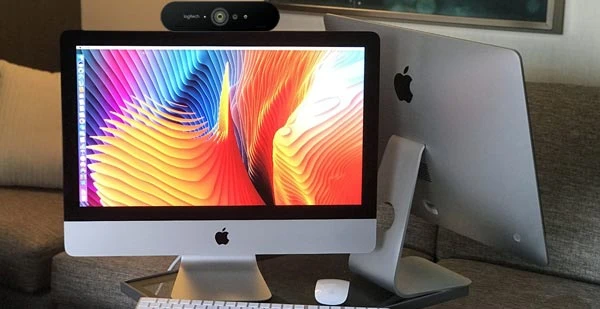
Contents
Standout Models in 2026
- #PreviewProductRating
- Bestseller No. 1
 Rating:

- Bestseller No. 2
 Rating:
 - Bestseller No. 3
 Rating:
 - Bestseller No. 4
 Rating:
 - Bestseller No. 5
 Rating:
 - Bestseller No. 6
 Rating:
 - Bestseller No. 7
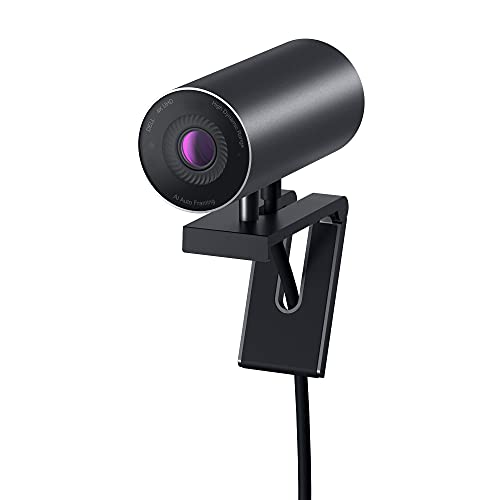 Rating:
Detailed Product Reviews
1. Logitech Brio 4K Webcam — Best for Professional Video Calls
The Logitech Brio 4K has been a benchmark in webcam quality for years, and the latest version keeps that reputation firmly intact in 2026. You get 4K video at up to 30fps, and the difference in sharpness compared to a standard 1080p camera is immediately noticeable. RightLight 3 technology handles automatic exposure and contrast correction, which means you'll look polished even when you're sitting directly in front of a bright window — a scenario that destroys image quality on cheaper cameras. The autofocus locks onto your face quickly and stays accurate even when you shift position during a long call.
What makes the Brio 4K especially useful for Mac users is the adjustable field of view. You can switch between 65°, 78°, and 90° diagonal presets, giving you tight head-and-shoulders framing for focused calls or a wider shot when you want to show more of your environment. The built-in noise-cancelling microphone handles everyday audio competently. It won't replace a dedicated USB microphone, but it's genuinely useful for back-to-back meetings. Setup on macOS is plug-and-play, and the optional Logi Tune app unlocks additional manual controls when you need them.
The 5x digital zoom is a useful feature when you need to fill the frame without repositioning the camera physically. Windows Hello facial recognition is a handy bonus if you move between Mac and PC. Build quality is solid, with a design that clips securely to most MacBook displays and external monitors. At this price range, you're getting a camera that genuinely competes with much more expensive setups for professional video use.
Pros:
- True 4K resolution at 30fps with excellent color reproduction
- RightLight 3 compensates automatically for backlight and glare
- Three adjustable FOV presets for flexible framing
- Plug-and-play on macOS with optional Logi Tune app for deeper control
Cons:
- Full 4K output requires a USB 3.0 port — drops to 1080p on USB 2.0
- Built-in microphone is capable but not studio quality
2. Logitech C920x HD Pro — Best Budget 1080p Pick
The Logitech C920x is one of the most consistently recommended webcams on the market, and for good reason. It delivers full HD 1080p at 30fps with solid autofocus and automatic light correction that makes your image look polished without any manual tweaking. If you don't need 4K and you want a reliable everyday webcam for your Mac, this is still one of the smartest calls you can make in 2026. The value is genuinely hard to argue with at this price point.
HD light adjustment automatically compensates for changing room conditions — whether you're in a bright open-plan office or a dimly lit home setup, the C920x keeps your image consistently usable. The dual stereo microphones pick up your voice clearly and reduce ambient noise reasonably well. They're not going to compete with a dedicated microphone for podcasting, but they're more than adequate for Zoom meetings and Teams calls. The autofocus is smooth and tracks well when you move around in your seat. The added compatibility with Nintendo Switch 2's GameChat mode is a welcome bonus if you're also a gamer.
On macOS, this camera installs without any fuss. You can use it as a straightforward plug-and-play device, or pair it with Logitech's Capture software for more granular control over your video settings. The build is sturdy, and the universal mounting clip works on most monitors and laptop screens. If you're new to external webcams and want a proven option without spending a lot, start here. Check our guide on how to use a webcam on a laptop for practical setup tips that apply directly to this model.
Pros:
- Excellent value for a 1080p webcam from a trusted brand
- Reliable autofocus and automatic light correction
- Dual stereo microphones with noise reduction
- Compatible with Nintendo Switch 2 GameChat mode
Cons:
- Capped at 1080p with no 4K upgrade path
- Frame rate tops out at 30fps
3. Razer Kiyo Pro — Best for Streaming and Content Creation
The Razer Kiyo Pro takes a different approach from most webcams in this price range. Instead of chasing 4K resolution, it focuses on delivering the smoothest, sharpest 1080p image possible — at 60fps with fully uncompressed video. Full HD 1080p at 60fps makes a real difference for motion handling. Live streams, gaming captures, and fast-moving presentations all look noticeably smoother compared to 30fps cameras. If you're streaming to Twitch or creating YouTube content on your Mac, that extra smoothness is immediately visible to your viewers.
The adaptive light sensor is where the Kiyo Pro genuinely distinguishes itself. Razer built in an HDR-enabled sensor that adapts to dark environments far more effectively than a standard webcam. You get usable, detailed video in conditions where most cameras start producing grainy, noisy footage. The wide-angle lens offers three FOV settings — 103°, 90°, and 80° — giving you real flexibility in how you frame your shot. The built-in omnidirectional microphone captures clean audio for casual use, though dedicated streamers will still want a standalone USB mic alongside it.
On macOS, the Kiyo Pro works well with OBS, Streamlabs, XSplit, Zoom, and Teams. The build quality feels premium — the camera head is weighty without being unwieldy, and the clip mechanism is secure on most monitors. One important trade-off to keep in mind: the Kiyo Pro prioritizes low-light performance and frame rate over maximum resolution. If 4K is non-negotiable for you, this isn't your camera. But if you want the best possible 1080p experience at 60fps, it delivers consistently impressive results.
Pros:
- Uncompressed 1080p at 60fps for visibly smooth video
- Superior low-light performance with adaptive light sensor and HDR
- Three adjustable FOV options (80°, 90°, 103°)
- Works natively with OBS, Streamlabs, XSplit, Zoom, and Teams
Cons:
- No 4K resolution option
- Priced on the higher end for a 1080p-only camera
4. Elgato Facecam 4K — Best for Professional Content Creators
The Elgato Facecam 4K is built for creators who want DSLR-level control from a webcam. This isn't a plug-and-play camera — it's a creative tool. You get 4K video at a full 60fps, powered by a Sony STARVIS 2 CMOS sensor and Elgato Prime Lens technology. The result is genuinely cinematic image quality with sharp detail, rich colors, and smooth motion at frame rates most 4K webcams can't match. If you create YouTube content, stream professionally, or run a video podcast from your Mac, the Facecam 4K represents a serious step forward.
Camera Hub software is where this webcam earns its place for serious creators. You get granular control over ISO, shutter speed, white balance, focus, and exposure — the kind of manual controls you'd normally only find on a proper camera body. Cinematic effects let you customize the look of your footage in ways generic webcams don't support. The 49mm lens filter thread is a particularly clever design choice, letting you attach physical filters for creative effects that software can't replicate. The USB-C connection delivers fast, reliable data transfer and works natively on modern Macs without any adapters.
Uncompressed video output is a big deal for professional use. You're sending raw, full-quality footage to your Mac rather than a compressed stream — that matters significantly if you're recording content for post-production editing. HDR support ensures highlights and shadows retain detail under challenging lighting. The build feels premium and purposeful. If you're comparing this to a DSLR-plus-capture-card setup, the Facecam 4K is a compelling, cleaner alternative. Just note there's no built-in microphone — factor a dedicated audio solution into your budget.
Pros:
- 4K at 60fps with fully uncompressed video output
- Sony STARVIS 2 sensor delivers exceptional image quality
- Deep manual controls via free Camera Hub software
- 49mm lens filter thread for physical creative effects
Cons:
- No built-in microphone — requires a separate audio solution
- One of the most expensive options in this roundup
5. Insta360 Link 2 PTZ 4K — Best AI-Powered Tracking Webcam
The Insta360 Link 2 does something none of the other webcams on this list can do: it physically moves to follow you. This is a Pan-Tilt-Zoom camera with real motorized movement, and the AI tracking is genuinely impressive. You can walk around your space, gesture at the camera to zoom in or out, and the Link 2 will keep you centered in the frame without you touching anything. Phase Detection Auto Focus (PDAF) means the camera locks focus instantly, even when you move quickly. For content creators who present while standing, teachers who move around, or anyone who doesn't want to be locked to a fixed spot, this feature is transformative.
The sensor is a 1/2-inch unit — the largest in this roundup — and it shows in the image quality. You get true-to-life 4K footage with excellent HDR performance and strong detail in low-light environments that smaller sensors struggle with. The AI noise-canceling microphone does a remarkable job of filtering out keyboard clatter, room echo, and background noise. It's the kind of audio quality that makes a dedicated microphone feel optional for many users. Gesture controls let you trigger modes like whiteboard view or overhead mode without touching anything — a thoughtful detail that genuinely improves the workflow during long sessions.
On macOS, the Link 2 connects via USB-C and is recognized immediately. The companion app gives you control over tracking modes, FOV settings, and other parameters. Compatibility with Zoom, Teams, Twitch, and virtually every major platform is solid. If you want the absolute best in AI-driven convenience and image quality in 2026, the Link 2 makes the strongest case. The price reflects the technology packed inside, but the experience it delivers is unlike anything else in this category.
Pros:
- Motorized PTZ with AI tracking follows you automatically around the room
- Large 1/2-inch sensor for superior 4K image quality and low-light performance
- AI noise-canceling microphone effectively eliminates background noise
- Gesture controls for hands-free mode switching
Cons:
- Higher price point than most webcams in this category
- PTZ mechanism adds bulk compared to fixed-lens cameras
6. Anker PowerConf C200 2K — Best Value 2K Option for Meetings
The Anker PowerConf C200 sits in the sweet spot between budget 1080p options and the premium 4K tier. At 2K resolution, you get noticeably sharper video than 1080p without paying the premium that 4K cameras demand. The dual stereo microphones feature AI noise cancellation that strips out background noise effectively — keyboard sounds, HVAC hum, traffic from outside. For remote workers who spend significant time on Zoom or Teams calls, that audio quality improvement over a standard webcam mic is immediately noticeable.
The built-in privacy cover is a practical touch that security-conscious users will appreciate. No software required, no camera light to rely on — just a physical cover you slide into place. Low-light correction handles dim environments competently, pulling usable detail out of shadowy rooms without adding excessive noise. The adjustable field of view gives you control over how much of your background is visible in frame, which matters when your home office isn't particularly tidy. The build quality feels solid for the price, and the clip mechanism is secure on most monitor sizes.
Setup on macOS is completely plug-and-play. There's no dedicated Mac app, but you don't need one for typical meeting use. The C200 is optimized for professional calls — it's not a streaming camera or a content creation workhorse. If your primary need is reliable, clear video for remote work without spending a lot, the C200 makes a compelling case. It just works, meeting after meeting, without demanding any attention from you. For a broader look at what specs matter most, our webcam buying guide breaks down resolution, sensors, and audio in plain terms.
Pros:
- 2K resolution delivers a visible step up from 1080p
- AI noise-canceling dual mics keep voices clear in noisy environments
- Built-in physical privacy cover for security-conscious users
- Adjustable field of view for flexible framing
Cons:
- No 4K option limits the resolution ceiling
- Not well suited for streaming or content creation workflows
7. Dell UltraSharp Webcam WB7022 — Best for Corporate and Executive Users
Dell's UltraSharp Webcam WB7022 is engineered for the serious professional home office. It's a 4K HDR camera with a large Sony STARVIS CMOS sensor that captures exceptionally bright, vivid video even in challenging lighting conditions. AI Auto Framing keeps you centered in frame as you move during long calls, which is particularly useful in executive presentations where you may shift position, gesture, or stand to reference something on a whiteboard. This is a camera built for daily professional use, and that intentionality shows in every detail.
The image signal processing is notably sophisticated. The webcam automatically optimizes your visual experience based on current lighting — handling extreme scenarios like full afternoon sun through a window or a dimly lit evening home office. You also get manual controls for brightness, sharpness, contrast, and saturation, plus 5x digital zoom and three FOV options at 65°, 78°, and 90°. That level of control is unusual in a webcam and lets you dial in precisely the look you want without relying on generic auto settings. The camera pairs naturally with Dell monitors via USB-C but works equally well with any Mac.
The build quality is premium and understated — this looks like professional equipment, not a consumer accessory. The mounting mechanism is sturdy and inspires confidence. Dell's software interface for adjusting settings is clean and intuitive. One important consideration: the WB7022 has no built-in microphone, so you'll need to pair it with a separate audio solution. For users who already have a dedicated mic setup — which most serious video call users do — that's a complete non-issue. For everyone else, factor that into your total budget alongside the camera itself.
Pros:
- 4K HDR with Sony STARVIS sensor for vivid, bright, detailed footage
- AI Auto Framing keeps you centered automatically during calls
- Extensive manual controls — brightness, sharpness, zoom, contrast, and FOV
- Premium build quality suited to executive and corporate environments
Cons:
- No built-in microphone — requires a separate audio solution
- Premium price for a corporate-oriented feature set
Key Features to Consider When Choosing a Mac Webcam
Resolution and Frame Rate
Resolution is the most visible spec, but it's not the only one that matters. At the top of the market in 2026, 4K at 60fps is the premium tier — it gives you sharp, smooth video that looks professional in any context. If budget is a concern, a strong 1080p camera at 60fps (like the Razer Kiyo Pro) often looks better in practice than a mediocre 4K camera at 30fps. The 2K middle ground (like the Anker C200) is worth considering if you want a clear step up from 1080p without the full 4K price tag. Match your resolution to your actual use case: 4K matters more for recorded content than for live calls, where your audience's bandwidth may compress it down anyway.
Frame rate affects how smooth your video looks in motion. For calls and conferencing, 30fps is perfectly adequate and most people won't notice the difference. For streaming, gaming, or content where you or your hands move frequently on screen, 60fps creates a visible improvement. According to the Wikipedia article on webcams, modern external cameras have dramatically outpaced built-in laptop options in both resolution and frame rate — making an external webcam a worthwhile upgrade for anyone using their Mac professionally on a regular basis.
Low-Light Performance
Most home offices and workspaces are not perfectly lit at all times. Low-light performance separates genuinely good webcams from frustrating ones. Look for cameras with large sensors — the Insta360 Link 2's 1/2-inch sensor is the largest in this roundup by a significant margin — along with HDR support and adaptive light processing. Software-based correction like Logitech's RightLight 3 handles moderate backlight well. But hardware-level sensor quality is more reliable in genuinely dark environments where software can only do so much. If you do a lot of late-night calls or work in a room without great natural light, prioritize the sensor spec over headline resolution numbers.
Built-in Microphone Quality
Microphone quality varies dramatically across this price range. The Insta360 Link 2 and Anker PowerConf C200 have the strongest built-in audio, with AI noise cancellation that genuinely filters out background noise rather than just reducing it slightly. The Logitech options offer solid stereo audio that handles meetings well. The Elgato Facecam 4K and Dell UltraSharp WB7022 include no built-in microphone at all — a deliberate choice aimed at users who already have a dedicated audio setup. If you work in a noisy environment, either choose a webcam with AI noise cancellation or budget separately for a dedicated USB microphone alongside your camera purchase. The audio side of a video call matters as much as the image quality.
macOS Compatibility and Software Controls
Every webcam in this guide works plug-and-play on macOS as a standard UVC device — no driver installation required. However, the companion software experience varies considerably. Logitech's Logi Tune app, Elgato's Camera Hub, and Insta360's companion app all provide meaningful additional controls beyond macOS system defaults. Some webcams, like the Anker C200, work perfectly well without any software at all. Consider whether you want deep manual control or a simple setup with zero configuration overhead. Also verify compatibility with your specific video platform — Zoom, Teams, Google Meet, and OBS handle external webcams somewhat differently, though all the cameras here are broadly compatible across all major platforms in 2026.
What People Ask
Do I need a special webcam for Mac, or will any USB webcam work?
Most modern USB webcams work with macOS without any special drivers. All seven webcams in this guide are confirmed Mac-compatible and work plug-and-play. However, some companion software — like Logi Tune or Elgato Camera Hub — may offer different feature sets on Mac compared to Windows. Always check the manufacturer's website for Mac-specific software support if advanced manual controls matter to your workflow.
Is 4K resolution worth it for video calls on Mac in 2026?
It depends on how you use the camera. For live video calls, most platforms like Zoom and Google Meet compress your stream, so the person on the other end may not see a full 4K signal. However, 4K captures more native detail, meaning even at compressed resolutions your image looks sharper and cleaner. For recorded content, streaming, or any situation where you control the output quality directly, 4K is absolutely worth the upgrade. For everyday meetings alone, a strong 1080p or 2K camera covers all your needs at a lower cost.
Which webcam performs best in low-light conditions on Mac?
The Insta360 Link 2 leads in low-light performance thanks to its large 1/2-inch sensor combined with HDR support. The Razer Kiyo Pro is a strong second, with its adaptive light sensor specifically engineered for dark environments at 60fps. Logitech's Brio 4K handles moderate backlight well with RightLight 3. If low-light capability is your top priority, the Insta360 Link 2 or Razer Kiyo Pro are your clearest choices in this group.
Do these webcams work without cloud software or an internet connection on Mac?
Yes — all of them function as plug-and-play USB cameras without any cloud software or internet connection. macOS recognizes them natively as UVC (USB Video Class) devices. Companion apps like Logi Tune or Camera Hub enhance the experience with additional settings, but none are required for basic operation. This makes all seven options suitable for privacy-conscious users or secure corporate environments where third-party software installation is restricted.
What frame rate should I look for in a webcam for Mac streaming?
For streaming, 60fps is the recommended target. It makes motion — whether you're gesturing, demonstrating something on screen, or just moving naturally in your seat — look noticeably smoother to your viewers compared to 30fps. The Razer Kiyo Pro (1080p/60fps), Elgato Facecam 4K (4K/60fps), and Insta360 Link 2 are the strongest options in this roundup if smooth streaming motion is a priority for you.
Can I use these webcams with a MacBook Air or MacBook Pro in 2026?
Absolutely. All seven webcams connect via USB-A or USB-C and work with any Mac, including current MacBook Air and MacBook Pro models. Cameras with USB-C connections — like the Elgato Facecam 4K and Insta360 Link 2 — are particularly convenient with modern MacBooks that use USB-C and Thunderbolt ports exclusively. If your Mac only has USB-C ports and a camera ships with a USB-A cable, a simple USB-A to USB-C adapter will handle the connection without any performance impact.
Buy on Walmart
- Logitech Brio 4K Webcam, Video Calling, Noise-Cancelling mic — Walmart Link
- Logitech C920x HD Pro PC Webcam, Full HD 1080p/30fps Video, — Walmart Link
- Razer Kiyo Pro Webcam for Streaming, Gaming, Video Calls: Fu — Walmart Link
- Elgato Facecam 4K - 4K60 Studio Webcam, DSLR-Like Control, C — Walmart Link
- Insta360 Link 2 - PTZ 4K Webcam for PC/Mac, 1/2" Sensor, AI — Walmart Link
- Anker PowerConf C200 2K Webcam for PC/Laptop/Mac, Computer C — Walmart Link
- Dell UltraSharp Webcam - WB7022 - 4K UHD - Large Sony STARVI — Walmart Link
Buy on eBay
- Logitech Brio 4K Webcam, Video Calling, Noise-Cancelling mic — eBay Link
- Logitech C920x HD Pro PC Webcam, Full HD 1080p/30fps Video, — eBay Link
- Razer Kiyo Pro Webcam for Streaming, Gaming, Video Calls: Fu — eBay Link
- Elgato Facecam 4K - 4K60 Studio Webcam, DSLR-Like Control, C — eBay Link
- Insta360 Link 2 - PTZ 4K Webcam for PC/Mac, 1/2" Sensor, AI — eBay Link
- Anker PowerConf C200 2K Webcam for PC/Laptop/Mac, Computer C — eBay Link
- Dell UltraSharp Webcam - WB7022 - 4K UHD - Large Sony STARVI — eBay Link
Key Takeaways
- The Insta360 Link 2 offers the most advanced overall package — motorized AI tracking, a large 1/2-inch sensor, and class-leading noise-canceling audio — for users who want the best available in 2026.
- The Logitech Brio 4K is the most balanced choice for Mac users who need reliable 4K quality with excellent automatic light correction for everyday professional calls and conferencing.
- The Razer Kiyo Pro delivers the best 1080p/60fps experience for streamers and content creators who prioritize smooth motion and strong low-light performance over maximum resolution.
- The Logitech C920x remains the top budget recommendation — dependable, easy to set up, and consistently solid quality for everyday Zoom, Teams, and Google Meet meetings on Mac.



About Remington May
Remington May is a technology writer and digital product reviewer with a focus on consumer electronics, software, and the everyday tech that shapes how people work and live. She has spent years evaluating smartphones, laptops, smart home devices, and digital tools — approaching each product from the perspective of a practical user rather than a spec-sheet enthusiast. At Pinwords, she covers tech buying guides, product reviews, smartphone and laptop comparisons, and practical how-to guides for getting more out of your devices.
Check for FREE Gifts. Or latest free books from our best messages.
Remove Ad block to reveal all the secrets. Once done, hit a button below