Best Webcam for Video Conferencing 2026
by Remington May
A 2025 Owl Labs survey found that 84% of remote workers say video quality directly impacts how professional they appear to colleagues and clients — yet most people are still calling in from a grainy built-in laptop camera that was never designed for extended meetings. In 2026, a dedicated webcam is less of a luxury and more of a baseline expectation if you spend serious time on Zoom, Microsoft Teams, or Google Meet. The gap between a $30 laptop camera and a proper webcam is the difference between looking like you're broadcasting from a potato and looking like you actually prepared for the meeting.
The good news is that the market has never been better. You can now get genuine 4K resolution, AI-powered auto-framing, phase detection autofocus (PDAF — the same technology high-end mirrorless cameras use to lock focus instantly), and studio-quality noise-canceling mics without spending a fortune. Whether you're a freelancer doing client calls, a remote team member sitting through back-to-back standups, or a content creator who also uses their webcam for occasional meetings, there's a model on this list built for your specific situation.
This guide cuts through the spec-sheet noise and focuses on what actually matters when you're on a live call. We've dug into real-world performance, software quality, and value for money across seven strong contenders for 2026. If you're new to external webcams and need help getting set up after you buy, check out our guide on how to connect a webcam to your computer for a step-by-step walkthrough. You might also want to browse our broader buying guide section for more hardware comparisons.

Contents
Our Top Picks for 2026
- #PreviewProductRating
- Bestseller No. 1
 Rating:

- Bestseller No. 2
 Rating:
 - Bestseller No. 3
 Rating:
 - Bestseller No. 4
 Rating:
 - Bestseller No. 5
 Rating:
 - Bestseller No. 6
 Rating:
 - Bestseller No. 7
 Rating:
Detailed Product Reviews
1. Logitech Brio 4K Webcam — Best Overall for Video Conferencing
The Logitech Brio 4K is the webcam that comes up first in almost every "best for meetings" conversation, and in 2026 there are still very good reasons for that. The image quality is genuinely outstanding — 4K at 30fps with Logitech's RightLight 3 technology, which reads the lighting in your room and automatically adjusts exposure and contrast to compensate for harsh backlighting or glare. If you've ever looked washed out in front of a bright window during a morning call, RightLight 3 is the specific feature that solves that problem without you having to touch a single setting.
The field of view (FOV) is adjustable between 65°, 78°, and 90° diagonal — so you can go tight for a head-and-shoulders framing or open up the view if you want to show a whiteboard behind you. Autofocus is quick and reliable, and the 5x digital zoom is useful when you want to crop in during a presentation without physically moving closer. It also supports Windows Hello facial recognition, which is a handy bonus if you're on a Windows machine and like logging in without a password. The integrated noise-canceling mic is competent for solo calls, though not exceptional for louder environments.
For most people doing regular video conferencing — whether that's one call a week or five a day — the Brio 4K is a low-drama, high-quality choice. It works immediately on Windows and Mac without driver installation, integrates cleanly with Teams, Zoom, and Google Meet, and produces images that hold up even when recipients are watching on large displays. It's not the cheapest option here, but the combination of image quality and plug-and-play reliability earns its price.
Pros:
- Excellent 4K image quality with reliable autofocus and 5x digital zoom
- RightLight 3 handles backlit and glare-heavy environments automatically
- Three adjustable FOV presets (65°/78°/90°) for flexible framing
- Windows Hello facial recognition support
- Plug-and-play on Windows and Mac with no driver needed
Cons:
- Built-in mic is adequate but not stellar in noisy spaces
- Premium price tag puts it out of reach for budget shoppers
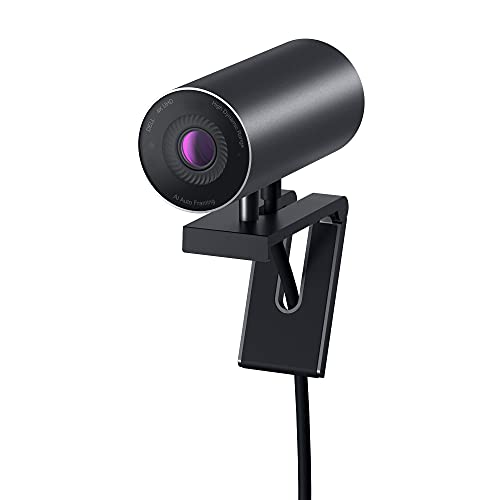
2. Dell UltraSharp Webcam WB7022 — Best for Business Professionals
Dell built the UltraSharp WB7022 specifically for professional use, and it shows in every design decision. At the heart of the camera is a 4K Sony STARVIS CMOS sensor — the same sensor family you'll find in professional security cameras and high-end compact cameras. STARVIS sensors are engineered to capture more light than standard webcam sensors, which translates into cleaner, brighter video in the kinds of mixed or dim office lighting that tends to make cheaper webcams look muddy. If your home office has imperfect lighting or you're frequently in conference rooms with fluorescent overheads, the Sony STARVIS sensor gives you a meaningful real-world advantage.
The AI Auto Framing feature is one of the standout selling points: the camera detects where you are in the frame and keeps you centered even if you lean back, stand up briefly, or move around your desk. It's smooth and not overly aggressive — you won't feel like the camera is frantically chasing you. The Image Signal Processing (ISP) chip inside the camera handles the heavy lifting for color accuracy and sharpness, which means you get excellent results even without tweaking software settings. That said, if you do want manual control, Dell's companion app lets you adjust brightness, sharpness, contrast, saturation, and zoom independently.
The build quality is exactly what you'd expect from Dell's UltraSharp line — solid, professional, and designed to sit on top of a monitor or laptop without wobbling. The mounting clip is sturdy and grips a wide range of screen thicknesses. The three FOV options (65°, 78°, 90°) match the Brio 4K, making it easy to compare the two side by side. For people who are already in the Dell ecosystem or who simply want a serious business-grade camera without the Logitech name, this is a compelling alternative.
Pros:
- Sony STARVIS CMOS sensor delivers exceptional low-light performance
- AI Auto Framing keeps you centered without feeling jittery or erratic
- ISP chip produces excellent color accuracy out of the box
- Polished companion app for manual adjustments
- Solid, professional build quality with a reliable monitor clip
Cons:
- No built-in microphone — you'll need a separate mic or headset
- Higher price point compared to most consumer webcams
3. Insta360 Link 2 — Best for AI Tracking and Dynamic Movement
The Insta360 Link 2 takes a fundamentally different approach to webcam design. While every other camera on this list sits stationary on top of your monitor, the Link 2 is a PTZ camera — Pan, Tilt, Zoom — meaning the physical camera head moves on a motorized gimbal (a stabilized pivot mount) to follow you around the room. The 4K sensor is built on a large 1/2" image sensor (larger sensors capture more light and detail), and the HDR processing ensures you look good whether you're sitting by a bright window or in a dim corner.
The AI tracking is genuinely impressive. You can activate it with a gesture — hold up your palm to the camera and it switches into tracking mode, following you as you walk to a whiteboard, stand up to stretch, or move to a different part of your space. For anyone who presents frequently or teaches remotely, the gesture control and tracking combination is a genuine game-changer. Phase Detection Autofocus (PDAF) keeps the subject sharp through motion without the hunting behavior that older contrast-detection systems suffer from. The AI noise-canceling mic is also one of the better built-in mics in this category, handling background noise from fans, keyboards, and ambient room noise without distorting your voice.
Where the Link 2 asks for some flexibility is in the setup experience — you'll want to spend a bit of time with the Insta360 app to configure your preferred tracking modes, zoom levels, and framing. It's not quite as zero-setup as the Logitech or Dell options. But if your workflow involves moving around on camera — whether for conferences, online teaching, streaming, or video podcasting — this camera does things no stationary webcam can match. You might also want to check out our guide on best webcams for video podcasting if you're considering this one for dual-purpose use.
Pros:
- PTZ motorized gimbal physically follows you around the room
- Large 1/2" sensor with HDR for excellent image quality in varied lighting
- PDAF ensures fast, precise autofocus with no hunting
- Gesture control activates tracking without touching the camera
- Best-in-class AI noise-canceling microphone for a built-in solution
Cons:
- Requires app setup to get the most out of the tracking features
- More expensive than stationary 4K alternatives
- Moving parts mean more potential for wear over time compared to fixed cameras
4. Elgato Facecam 4K — Best for Content Creators Who Also Conference
The Elgato Facecam 4K is built for people who want DSLR-level image quality from a webcam — and in 2026, it delivers on that promise more convincingly than ever. The combination of a Sony STARVIS 2 CMOS sensor and Elgato's Prime Lens technology produces video that has noticeably more depth, color richness, and detail than the typical webcam. At 4K resolution and 60 frames per second (fps), motion is silky smooth, which matters if you're doing anything dynamic — demonstrating a product, switching between slides quickly, or simply gesturing while you talk.
The uncompressed video output is the technical detail that separates the Facecam 4K from the pack. Most webcams compress video before sending it to your computer, which reduces quality. The Facecam 4K sends raw, uncompressed video data, which gives video editing software and streaming platforms the cleanest possible source material. If you record your calls or meetings for later review, or if you stream on the side, this matters a great deal. Pair it with the free Camera Hub software and you get a full suite of DSLR-like controls: ISO (sensor sensitivity), shutter speed, white balance, and cinematic effects including background blur and color grading.
The 49mm filter thread on the lens is an unusual and welcome feature — you can attach real camera lens filters to adjust the look of your video without any software processing. The build quality is premium and the USB-C connection feels future-proof. Where the Facecam 4K makes trade-offs is in the audio department: there's no built-in microphone, which is a deliberate choice since Elgato's philosophy is that serious creators already have a dedicated mic. If you're primarily a meeting participant and need a one-device audio/video solution, you'll need to add a mic. But if you already have a decent microphone, or you're looking for the absolute best image quality in this round-up, this is the camera to consider.
Pros:
- 4K at 60fps with uncompressed video output for maximum image quality
- Sony STARVIS 2 sensor with Elgato Prime Lens for DSLR-like visuals
- Camera Hub software gives full manual control over exposure and color
- 49mm filter thread for physical lens filters — unique in the webcam category
- USB-C connection for clean, future-proof cable management
Cons:
- No built-in microphone — a deal-breaker if you need an all-in-one solution
- Overkill for users who only do occasional video calls
5. Anker PowerConf C200 — Best Budget-Friendly Upgrade
If you're not ready to commit to the premium tier but you want a meaningful upgrade over your laptop's built-in camera, the Anker PowerConf C200 is the most sensible option in this round-up. It shoots in 2K resolution (2560×1440 — roughly halfway between 1080p HD and full 4K), which is enough to look sharp on most video conferencing platforms, since Zoom and Teams still compress your video feed anyway. The image is clean, well-exposed, and vastly better than any built-in laptop camera you've used.
The dual AI noise-canceling microphones are a genuine highlight at this price point. Stereo mics give your voice a natural presence, and the AI processing filters out keyboard clicks, HVAC hum, and ambient background noise effectively. For anyone who has ever had a colleague complain about echo or background interference on a call, this microphone setup will solve that problem without requiring a separate mic purchase. The built-in privacy cover is also a small but meaningful touch — slide it closed when the camera isn't in use and you have both a physical privacy guarantee and a reminder that the camera is off.
Low-light correction is automatic and handles typical home office lighting well. The adjustable field of view lets you dial in how much of the background you show. You do lose features like AI auto-framing, PTZ movement, and 4K resolution compared to the pricier options here, but for someone who takes a handful of calls per week and wants a clean, no-fuss upgrade, the C200 delivers excellent value. It's also worth reading our guide on how to use a webcam on a laptop if this is your first time setting up an external camera with a laptop.
Pros:
- Strong 2K image quality that's a major upgrade over built-in laptop cameras
- Dual AI noise-canceling stereo microphones perform above their price class
- Physical privacy cover included
- Automatic low-light correction handles typical home office environments
- Budget-friendly price with no compromise on essential features
Cons:
- 2K rather than 4K — noticeable if your recipients are on large 4K displays
- No AI auto-framing or PTZ movement
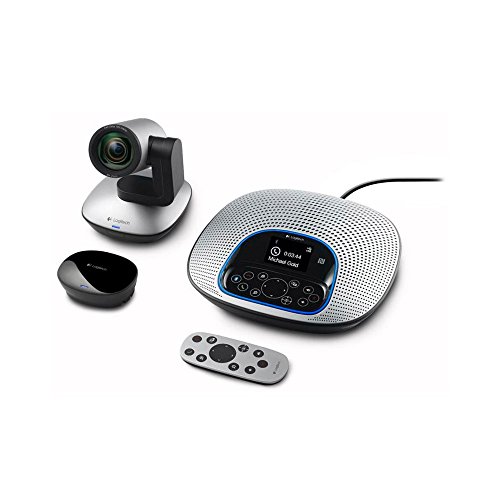
6. Logitech ConferenceCam CC3000e — Best for Conference Rooms
Every other camera on this list is designed for a single person at a desk. The Logitech ConferenceCam CC3000e is the outlier — it's built for a conference room table, and it approaches the problem completely differently. The 90-degree wide field of view captures a full room up to 10 people, and the pan, tilt, and 10x optical zoom (optical, not digital — meaning the image quality stays sharp as you zoom) are controlled via a physical remote. For small to mid-size meeting rooms that still rely on a laptop and a camera rather than a fixed AV installation, the CC3000e is one of the cleanest solutions available.
The integrated omnidirectional speakerphone is the other half of the value proposition. Wide-range noise-canceling microphones pick up voices from around the table, and the touch controls on the speakerphone unit handle mute, volume, and call management directly. Video quality tops out at 1080p at 30fps, which is standard HD and completely fine for conference room use — participants on the other end of the call see the whole room clearly rather than individual pixel detail. According to Wikipedia's overview of videotelephony, room-based systems like this have evolved from expensive enterprise hardware into accessible plug-and-play devices, and the CC3000e represents exactly that transition.
If you're setting this up in a dedicated meeting room that multiple people use, the USB hub built into the speakerphone is a practical touch — it saves desk space and reduces cable clutter. The downside is that 1080p looks increasingly dated for anyone used to 4K personal webcams, and the remote-control-dependent operation feels a bit less elegant than modern AI auto-framing. But for its specific use case — equipping a conference room on a reasonable budget — it remains one of the most capable all-in-one solutions in 2026.
Pros:
- Designed for conference rooms with up to 10 participants
- 10x optical zoom with remote-controlled pan and tilt
- Integrated omnidirectional speakerphone with noise-canceling mics
- Built-in USB hub for cable management on conference room tables
- Plug-and-play setup with no software installation required
Cons:
- 1080p resolution looks outdated compared to 4K individual webcams
- Remote control operation is less intuitive than AI auto-framing
- Bulky form factor — not a fit for personal desk use
7. EMEET S600 4K Webcam — Best for Streamers and Content Creators on a Mid-Range Budget
The EMEET S600 is the camera on this list that feels most purpose-built for the overlap between streaming and video conferencing. The Sony 1/2.55" sensor shoots 4K at 30fps or drops to 1080p at 60fps — and that 1080p at 60fps mode is where things get interesting for live streaming. Sixty frames per second gives motion on camera a much smoother, more natural appearance than the standard 30fps, which is noticeable when you're talking with expressive gestures or demonstrating something live. The choice between 4K at 30fps and 1080p at 60fps lets you prioritize resolution or smoothness depending on your use case.
The PDAF autofocus system locks on fast and stays locked — no drifting in and out of focus when you shift position slightly, which is a common annoyance with cheaper webcams that use older contrast-detection systems. Auto light adjustment handles mixed lighting by balancing shadows and highlights in real time, which helps when you have a window behind you and a lamp to one side. The built-in privacy cover is a physical shutter you can slide closed, and the proprietary noise-reduction algorithm on the dual microphones does a solid job filtering out ambient room noise, fans, and keyboard clatter.
There's one quirk worth knowing about: at 4K resolution, the field of view is fixed at 73° — you can only adjust the FOV (between 40° and 73°) when using the 1080p mode. This is a hardware constraint tied to the sensor's crop factor at 4K, and it shouldn't be a deal-breaker for most users, but it's worth knowing upfront. EMEETLINK software enables manual tuning and lets you toggle noise cancellation off if you prefer raw audio. For streamers who also take client calls, or anyone who wants 4K image quality without paying top-tier prices, the S600 is one of the more well-rounded options in the mid-range.
Pros:
- Flexible resolution: 4K at 30fps or smooth 1080p at 60fps
- Large Sony 1/2.55" sensor with strong low-light and HDR performance
- PDAF autofocus is fast, precise, and stable
- Physical privacy cover included
- Dual noise-reducing mics with EMEETLINK software control
Cons:
- FOV is fixed at 73° in 4K mode — adjustable only in 1080p mode
- EMEETLINK software is functional but not as polished as Logitech or Elgato's apps
Buying Guide: How to Choose the Best Webcam for Video Conferencing
Resolution: Do You Actually Need 4K?
You'll see 4K (3840×2160) on nearly every premium webcam in 2026, but here's the honest truth: most video conferencing platforms — Zoom, Teams, Google Meet — cap their streams well below 4K for bandwidth reasons. In practice, 1080p delivers the baseline sharpness you need for professional-looking calls, and 2K is already a noticeable step up. Where 4K genuinely pays off is if you record your calls locally, stream on platforms that support higher resolutions, or want the camera to serve double duty as a content creation tool. If you're purely a meeting participant with no streaming ambitions, don't let 4K be the only reason you buy a more expensive camera.
Autofocus Technology: PDAF vs. Contrast Detection
Autofocus (AF) is the system that keeps your face sharp when you shift position on your chair. Older webcams use contrast detection AF, which works by hunting back and forth until it finds the sharpest contrast in the frame — it's accurate but slow, and it produces that familiar "hunting" blur when you move. Newer cameras like the Insta360 Link 2 and EMEET S600 use Phase Detection Autofocus (PDAF), which calculates the correct focus distance in a single step. The result is faster, more precise focusing that stays locked on you through normal movement. If you fidget, gesture a lot, or move your chair during calls, PDAF is a feature worth paying for.
Lighting Handling: RightLight, HDR, and AI Processing
Your lighting situation matters more to final image quality than almost any other factor. If you sit in front of a window, a cheap webcam will either blow out the background or leave your face in shadow. Premium cameras handle this through a combination of hardware and software: larger sensors (measured in fractions of an inch — bigger is better) capture more light physically, while HDR processing (High Dynamic Range — meaning it captures both bright and dark areas accurately in the same frame) and AI exposure algorithms compensate for the rest. Before you buy, think honestly about your lighting setup. If it's genuinely good — ring light, softbox, or strong indirect natural light — even a mid-range camera will look great. If you're fighting a window or fluorescent overheads, spend up on a camera with a quality sensor and dedicated light correction.
Microphone Quality: When Built-In Is Enough and When It Isn't
Every camera on this list except the Dell WB7022 and Elgato Facecam 4K includes a built-in microphone. For solo home office calls in a quiet room, a quality built-in mic — especially one with AI noise cancellation like the Insta360 Link 2 or Anker C200 — is genuinely good enough. You don't need a separate USB microphone. But if you're in a noisy environment, share a space with others, or have consistent background noise from HVAC or street traffic, a dedicated microphone will outperform any built-in solution regardless of price. The cameras that ship without mics (Dell and Elgato) are making the right call for their target users: people who already have a quality audio setup. Don't let "no built-in mic" be an automatic dealbreaker — just factor it into your total budget.
FAQs
What resolution webcam do I need for video conferencing in 2026?
For standard video calls on Zoom, Teams, or Google Meet, 1080p is sufficient and most platforms won't stream higher than that anyway. If you also record meetings locally, create content, or want a camera that handles both conferencing and streaming, 4K is worth the investment. The Anker C200's 2K resolution is a practical middle ground that looks noticeably sharper than 1080p without the premium 4K price tag.
Is it better to use a webcam or a laptop's built-in camera for video calls?
A dedicated external webcam almost always produces better image quality than a built-in laptop camera, even at the budget end. Built-in cameras are typically 720p or 1080p with small sensors, poor low-light performance, and limited microphone quality. An external webcam gives you a larger sensor, proper autofocus, better optics, and often significantly improved audio. The difference is immediately visible to everyone on your call.
Do I need a webcam with a built-in microphone?
It depends on your setup. If you don't already own a dedicated USB or XLR microphone, a webcam with a quality built-in mic — like the Insta360 Link 2, Anker C200, or Logitech Brio 4K — is a convenient all-in-one solution. If you have or plan to get a proper standalone microphone, you can prioritize cameras with better optics that don't include a mic, like the Dell UltraSharp or Elgato Facecam 4K, without any trade-off.
What is AI auto-framing and do I need it?
AI auto-framing is a feature where the camera automatically detects your face and adjusts the crop or zoom to keep you centered in the frame, even when you move. It's different from PTZ (physical camera movement, like the Insta360 Link 2) — most AI auto-framing is done digitally by cropping into the sensor. It's genuinely useful if you tend to move around during calls, stand up occasionally, or present to a whiteboard. For people who sit still during meetings, it's a nice-to-have rather than a necessity.
Can I use a streaming webcam for video conferencing?
Absolutely. Cameras like the EMEET S600 and Elgato Facecam 4K are marketed as streaming cameras but work perfectly as conferencing webcams — often better than purpose-built conference cameras because of their superior image quality and optics. The main consideration is whether the camera includes a built-in microphone, since streaming setups typically assume you have a separate mic. If you split your time between content creation and meetings, a streaming-grade webcam is a smart investment that serves both roles well.
How do I install and set up an external webcam?
Most modern webcams are plug-and-play — connect via USB, wait a few seconds for your operating system to recognize the device, then select it as your camera in Zoom, Teams, or whichever platform you use. No driver installation is needed in most cases on Windows 10/11 or macOS. Some cameras come with optional companion software (Logitech Options+, Elgato Camera Hub, EMEETLINK) that unlocks additional controls, but the camera will work without it. If you run into issues, check out our full step-by-step guide on how to connect a webcam to your computer.
Buy on Walmart
- Logitech Brio 4K Webcam, Video Calling, Noise-Cancelling mic — Walmart Link
- Dell UltraSharp Webcam - WB7022 - 4K UHD - Large Sony STARVI — Walmart Link
- Insta360 Link 2 - PTZ 4K Webcam for PC/Mac, 1/2" Sensor, AI — Walmart Link
- Elgato Facecam 4K - 4K60 Studio Webcam, DSLR-Like Control, C — Walmart Link
- Anker PowerConf C200 2K Webcam for PC/Laptop/Mac, Computer C — Walmart Link
- Logitech ConferenceCam CC3000e All-in-One HD Video and Audio — Walmart Link
- EMEET S600 4K Webcam for Streaming - Sony 1/2.55'' Sensor, P — Walmart Link
Buy on eBay
- Logitech Brio 4K Webcam, Video Calling, Noise-Cancelling mic — eBay Link
- Dell UltraSharp Webcam - WB7022 - 4K UHD - Large Sony STARVI — eBay Link
- Insta360 Link 2 - PTZ 4K Webcam for PC/Mac, 1/2" Sensor, AI — eBay Link
- Elgato Facecam 4K - 4K60 Studio Webcam, DSLR-Like Control, C — eBay Link
- Anker PowerConf C200 2K Webcam for PC/Laptop/Mac, Computer C — eBay Link
- Logitech ConferenceCam CC3000e All-in-One HD Video and Audio — eBay Link
- EMEET S600 4K Webcam for Streaming - Sony 1/2.55'' Sensor, P — eBay Link
Next Steps
- Match your top pick to your actual use case — if you move around during calls, prioritize the Insta360 Link 2; if you need a budget upgrade, start with the Anker C200; if you're equipping a conference room, look at the Logitech CC3000e.
- Check current prices on Amazon — webcam prices fluctuate frequently, especially around major sales events. Click through any of the affiliate links above to see today's price before you decide.
- Test your current lighting setup — before buying, hop on a video call and check what you actually look like. If your lighting is already solid, a mid-range camera may be all you need; if it's bad, consider pairing any camera on this list with a basic ring light.
- Review your audio situation — if you're considering the Dell UltraSharp or Elgato Facecam 4K (both mic-free), factor a USB microphone into your budget now rather than after the fact.
- Set up your new camera correctly — after you receive your camera, bookmark our guide on how to use a webcam on a laptop to make sure it's configured properly in your conferencing apps for the best possible image quality.



About Remington May
Remington May is a technology writer and digital product reviewer with a focus on consumer electronics, software, and the everyday tech that shapes how people work and live. She has spent years evaluating smartphones, laptops, smart home devices, and digital tools — approaching each product from the perspective of a practical user rather than a spec-sheet enthusiast. At Pinwords, she covers tech buying guides, product reviews, smartphone and laptop comparisons, and practical how-to guides for getting more out of your devices.
Check for FREE Gifts. Or latest free books from our best messages.
Remove Ad block to reveal all the secrets. Once done, hit a button below